Some of Turnout's work happens when nobody is clicking: emails go out, finished events close, reminders are queued for tomorrow. APEX automations run that work on a schedule, inside the database, as part of the app.
| Automation | Runs | Calls |
|---|---|---|
| Send queued emails | Every 5 minutes | to_notify_api.send_queued |
| Close finished events | Every hour | to_event_api.complete_finished_events |
| Queue event reminders | Every hour | to_event_api.queue_reminders |
All three are one line each. The work lives in the packages, where the tests can reach it; the automation only says when.
The design that makes this safe was set back in Part 3: business logic never sends email. Cancelling an event queues a message in TO_NOTIFICATIONS and finishes. A slow or broken mail server can never make an RSVP or a cancellation fail.
Before you start
You need Turnout as it was at the end of Part 9. If you don't have it, import the Start here app, turnout-app-part-9.zip, from the downloads at the end of this page.
Imported an app? APEX turns every automation off when it imports an app. After an import, open Shared Components › Automations, open each one and set Schedule Status to Active.
The packages this part relies on have been in your schema since Part 3, with one change: send_queued now sends from the MAIL_FROM setting you made in Part 5. In SQL Workshop › SQL Scripts, upload and run to_notify_api.sql to get it. The other two, to_club_api.sql and to_event_api.sql, are the same as Part 3's; run them only if you changed yours.
Refresh the sample data. The sample events are dated from the day you last ran the seed, and the early ones are only a few days out. In SQL Workshop › SQL Scripts, run turnout_seed.sql again so they're upcoming again. It resets the sample data, including anything you changed while testing.
Check: in SQL Commands, run select object_name, status from user_objects where object_name like 'TO\_%' escape '\' and status <> 'VALID'. No rows means everything compiled.
Lesson 10.1 The outbox
Every email in Turnout takes the same path: a rule queues it, a scheduled job sends it.
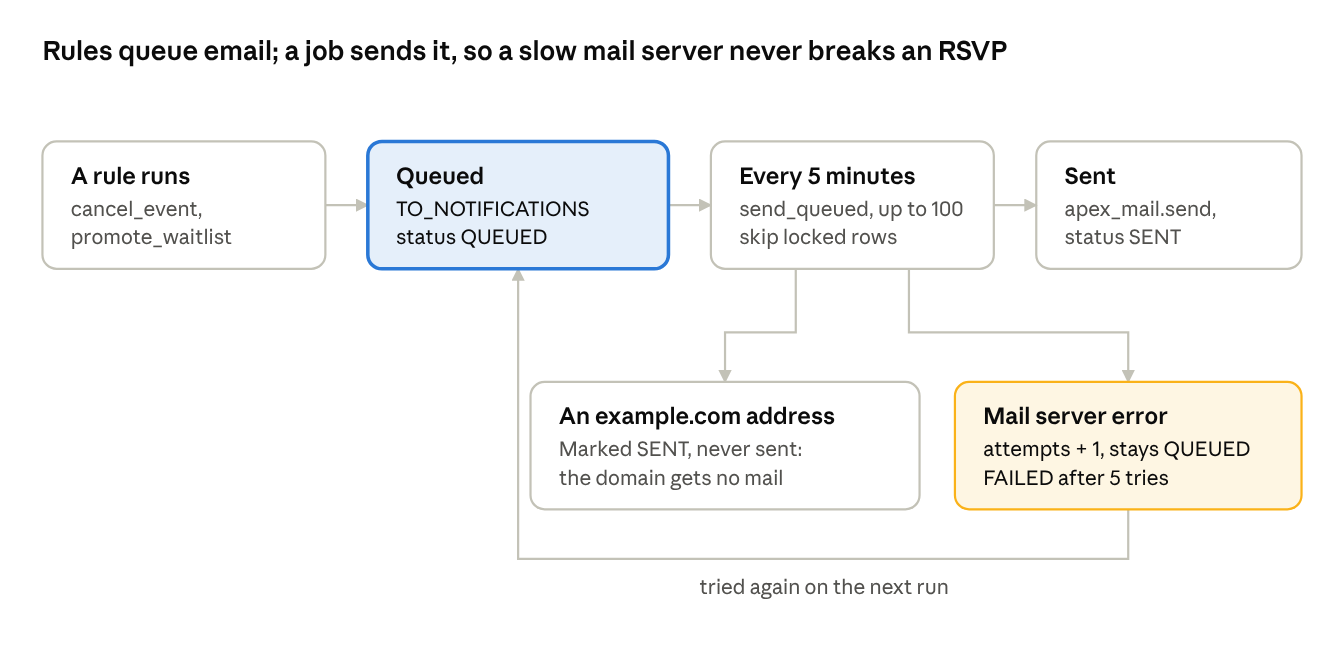
The rule's transaction commits whether or not mail works. The job retries failures on its own schedule, and a message that keeps failing stops after five tries, with the error in LAST_ERROR for you to read.
Lesson 10.2 Email templates and placeholders
An email template (Shared Components › Email Templates) holds a subject and an HTML body with #PLACEHOLDERS#. Turnout has six, one per kind of message:
| Static ID | Sent when | Placeholders |
|---|---|---|
EVENT_CANCELLED |
An organizer cancels an event | EVENT_TITLE, CLUB_NAME, EVENT_WHEN, VENUE_NAME, REASON |
WAITLIST_PROMOTED |
Someone cancels and you're next in line | EVENT_TITLE, CLUB_NAME, EVENT_WHEN, VENUE_NAME |
EVENT_REMINDER |
About a day before an event you're going to | EVENT_TITLE, CLUB_NAME, EVENT_WHEN, VENUE_NAME |
CLUB_INVITE |
An organizer invites you (an exercise) | CLUB_NAME, INVITED_BY, INVITE_LINK |
CLUB_APPROVED |
A site admin approves your new club | CLUB_NAME |
MEMBER_APPROVED |
An organizer approves your request to join | CLUB_NAME |
The static IDs match constants in TO_NOTIFY_API (c_event_cancelled and so on), so a typo shows up as a compile error, not a silent missing email.
The placeholders are filled when the message is queued, not when it's sent. queue_for_event builds a JSON object, {"EVENT_TITLE": "Tuesday Track Intervals", "EVENT_WHEN": "Wednesday, October 21 at 6:30 PM", ...}, and stores it with the message. If the organizer renames the event an hour later, the email still describes what people signed up for.
Times in the placeholders are already in the club's time zone (Lesson 2.5), so "6:30 PM" means 6:30 PM in Tampa for every reader.
The approval emails carry the club's name too: approve_club and approve_member build {"CLUB_ID": 1, "CLUB_NAME": "Tampa Runners"}, because a template can only print what it's given.
Build it. Create the six templates. For each one: Shared Components › Email Templates › Create Email Template. Type the bold name below as the Template Name, then, under Advanced, replace the Static ID APEX suggests with the one given (APEX builds it from the name, and the package looks it up by this exact ID). Fill in the rest and click Create Email Template.
The Header and Footer are the same for all six:
<b style="color:#c2410c">Turnout</b>
<p style="color:#6e6e73">You get this because you use Turnout.</p>
Paste the first line into Header and the second into Footer. Then the six:
Event cancelled: Static ID EVENT_CANCELLED, Email Subject #EVENT_TITLE# is cancelled, HTML Body:
<h2>#EVENT_TITLE# is cancelled</h2>
<p>#CLUB_NAME# cancelled #EVENT_TITLE# on #EVENT_WHEN#.</p>
<p>Their reason: #REASON#</p>
<p>Your RSVP is cancelled too. Nothing else to do.</p>
Off the waitlist: Static ID WAITLIST_PROMOTED, Email Subject You're in: #EVENT_TITLE#, HTML Body:
<h2>A spot opened up. You're going.</h2>
<p>You were on the waitlist for #EVENT_TITLE# with #CLUB_NAME#, and now you have a spot.</p>
<p><b>#EVENT_WHEN#</b> at #VENUE_NAME#.</p>
<p>Your ticket is in My events. If you can no longer make it, cancel there so the next person gets your spot.</p>
Event reminder: Static ID EVENT_REMINDER, Email Subject Tomorrow: #EVENT_TITLE#, HTML Body:
<h2>See you tomorrow</h2>
<p>#EVENT_TITLE# with #CLUB_NAME# is on <b>#EVENT_WHEN#</b> at #VENUE_NAME#.</p>
<p>Your ticket is in My events. Can't make it? Cancel there and someone on the waitlist gets your spot.</p>
Club invitation: Static ID CLUB_INVITE, Email Subject You're invited to #CLUB_NAME#, HTML Body:
<h2>Join #CLUB_NAME# on Turnout</h2>
<p>#INVITED_BY# invited you to #CLUB_NAME#.</p>
<p><a href="#INVITE_LINK#">Accept the invitation</a>. The link works for 7 days.</p>
Club approved: Static ID CLUB_APPROVED, Email Subject #CLUB_NAME# is live, HTML Body:
<h2>#CLUB_NAME# is live</h2>
<p>Your club is approved and now appears on Clubs. Create your first event from the club page.</p>
Membership approved: Static ID MEMBER_APPROVED, Email Subject Welcome to #CLUB_NAME#, HTML Body:
<h2>You're in</h2>
<p>The organizers of #CLUB_NAME# approved your request. You can RSVP to its events now.</p>
Leave Plain Text Format empty: APEX builds a plain-text version from the HTML.
Check: the Email Templates list shows six, and each Static ID matches the table above letter for letter. Open one and look at the body: the #PLACEHOLDERS# show as written.
Lesson 10.3 The send automation
Shared Components › Automations › Create.
| Setting | Value | Why |
|---|---|---|
| Type | Scheduled | Runs by the clock |
| Schedule | FREQ=MINUTELY;INTERVAL=5 |
Fast enough that "you're in" arrives while people still care |
| Actions Initiated On | Always | The code decides what to send, not a query |
| Action | Execute Code: to_notify_api.send_queued(p_application_id => apex_application.g_flow_id); |
The templates belong to this app |
Build it.
- Shared Components › Automations › Create. Name
Send queued emails, Type Scheduled, Actions initiated on Always. - Execution Schedule Custom, then Frequency Minutely and Interval
5. Click Create. - APEX opens the automation. Under Settings, check that Schedule Expression reads
FREQ=MINUTELY;INTERVAL=5and set Schedule Status to Active. Under Actions, click Add Action (or edit the action if APEX already made one): NameRun, Type Execute Code, Location Local Database, Language PL/SQL, Code:
to_notify_api.send_queued(p_application_id => apex_application.g_flow_id);
- Save Changes. To run it now instead of waiting, use Save and Run, or the run button in the Automations list.
send_queued takes up to 100 queued messages, oldest first, and for each one:
- Locks it with
for update skip locked, so two runs at once never send the same message. - Calls
apex_mail.sendwith the template and placeholders. - Marks it SENT, or on an error, counts the attempt and keeps it QUEUED. After 5 failed attempts it becomes FAILED and stops trying.
- At the end,
apex_mail.push_queueasks APEX to deliver now.
The example.com rule
The 248 sample people all have example.com addresses. That domain is reserved for examples and never receives mail, but sending hundreds of reminders to it would still use up a free workspace's mail allowance. So send_queued skips them:
if n.email like '%@example.com' then
    update to_notifications
       set status     = 'SENT',
           sent_at    = systimestamp,
           attempts   = attempts + 1,
           last_error = 'Not sent: example.com addresses never receive mail.'
     where id = n.id;
    continue;
end if;
The message still moves through the outbox, so you can watch the whole flow with sample data, and nothing leaves the building.
Lesson 10.4 Closing finished events
Organizers can close an event from Attendance (Lesson 7.13), but many won't. Every hour, Close finished events calls to_event_api.complete_finished_events, which closes every published event that ended more than six hours ago: people still GOING become NO_SHOW, the waitlist is cancelled, the event is COMPLETED.
Six hours leaves time for late check-ins and for the organizer to close it themselves. The procedure uses for update skip locked too, so an organizer pressing Complete event at the same moment never clashes with the automation.
Build it. Create a second automation the same way: Name Close finished events, Scheduled, Always, Execution Schedule On the Hour. Then set Schedule Status Active and add one Execute Code action:
to_event_api.complete_finished_events;
Lesson 10.5 Day-before reminders
Queue event reminders runs hourly and calls to_event_api.queue_reminders. It looks for people going to events that start 20 to 28 hours from now, and queues an EVENT_REMINDER for each.
An hourly job with an 8-hour window would remind people eight times, unless it remembers. It does, through the outbox itself: each reminder's placeholders carry the event id, and the query skips anyone who already has one:
and not exists (
        select 1
          from to_notifications n
         where n.user_id            = r.user_id
           and n.template_static_id = to_notify_api.c_event_reminder
           and json_value(n.placeholders, '$.EVENT_ID') = to_char(e.id))
Why a window and not "exactly 24 hours". If the database is down for an hour, a job looking for exactly 24 hours ahead misses everyone in that hour. A wide window plus "not already sent" survives a missed run.
Build it. And the third: Name Queue event reminders, Scheduled, Always, On the Hour, then Active, with:
to_event_api.queue_reminders;
Check: Shared Components › Automations lists three, all Active: one every 5 minutes, two hourly.
Lesson 10.6 Watching automations run
| To see | Go to |
|---|---|
| Each run, how long it took, any error | Shared Components › Automations › your automation › Execution Log |
| Run it now instead of waiting | The automation's Execute button |
| What Turnout queued | SQL Commands: select status, template_static_id, last_error, count(*) from to_notifications group by status, template_static_id, last_error |
| What APEX is sending | Workspace › Monitor Activity › Mail Queue and Mail Log |
An automation that fails stays active (Action Error Handling: Ignore), so one bad run doesn't stop the next. Watch the log for a run that fails every time.
Checkpoint
Turnout now emails people at the right moments and tidies up after itself, all through the outbox, all testable without a browser.
Try it
- Sign in as
hannah.cole@example.comand cancel her RSVP to Tuesday Track Intervals. The first person on the waitlist moves up, and aWAITLIST_PROMOTEDrow appears inTO_NOTIFICATIONS. (We use Hannah because she is still going; Priya may be checked in from Part 7.) - In the Automations list, click the run button on Send queued emails. The row turns SENT, with the example.com note. If it's already SENT, the automation's own 5-minute run got there first.
- To get a real email: sign in as Priya and create a Tampa Runners event that starts about 24 hours from now, and publish it. Then set DEMO_MODE to
N(Application Settings), sign in with your own email address, join Tampa Runners and RSVP to that event. Run Queue event reminders, then Send queued emails, and check your inbox. Set DEMO_MODE back toYafterwards, or the sample people can't sign in. Free workspaces have a daily mail limit, and some mail servers reject a made-up sender: if nothing arrives, look atLAST_ERRORinTO_NOTIFICATIONSand at Monitor Activity › Mail Log.
Files
| File | Change |
|---|---|
to_notify_api.sql |
Sends from MAIL_FROM; skips example.com addresses |
to_club_api.sql |
Approval emails carry the club name |
to_event_api.sql |
New queue_reminders |
turnout/shared-components/email-templates.apx |
New: six templates |
turnout/shared-components/automations/ |
New: three automations |
Exercises
- Send
CLUB_INVITEfromto_club_api.create_invite, withINVITE_LINKbuilt byapex_page.get_url. - Add a weekly digest for organizers: new members and next week's RSVPs, every Monday at 8 AM.
- Add a
preferred_languagecheck so Spanish speakers get Spanish templates (Part 12 shows how). - Stretch: let people turn reminders off. Add a column to
TO_USERSand respect it inqueue_reminders.
Downloads for Part 10
Everything this part uses. Each file is plain text you can open in any editor before you run it.
- Start hereturnout-app-part-9.zipTurnout at the end of Part 9, if you're starting at Part 10
- Finishedturnout-app-part-10.zipTurnout at the end of Part 10. Import it to compare, or to catch up
- to notify apito_notify_api.sqlLesson 10.3: skips example.com addresses
- to club apito_club_api.sqlLesson 10.2: approval emails carry the club name
- to event apito_event_api.sqlLesson 10.5: queue_reminders
- Part 10 kitturnout-part-10.zipEverything above in one zip, with a README
- Start overturnout_reset.sqlRemoves every TO_ object from your schema
Part 10 quiz
5 questions. Get 4 right to pass. You can retake it as often as you like.