In this part Turnout stops borrowing your APEX workspace accounts and gets its own sign-in: a one-time code sent by email, plus Continue with Google, Microsoft and GitHub. Whichever way someone comes in, they land as the same person in TO_USERS.
A club app lives or dies on how easy it is to get in. Nobody wants another password for their running club. So Turnout has none: email codes for everyone, and one-tap social sign-in for people who prefer it.
What you build:
- A login code table and a small package that sends, checks and expires six-digit codes
- A custom authentication scheme for email codes, the app's default
- Three social sign-in schemes, one each for Google, Microsoft and GitHub
- A two-step sign-in page: enter your email, then the code, with the three social buttons underneath
- A post-authentication procedure that links every sign-in to one row in TO_USERS
- A demo mode, so you can sign in as Priya with seed data whose example.com addresses never receive mail
The rule for the whole part: APEX decides that someone signed in; our code decides who they are. The authentication scheme only proves an identity. TO_USER_API turns that identity into a Turnout person, every time, the same way.
Before you start
You need Turnout as it was at the end of Part 4: the public pages, the sign-in page, and RSVP working for Grace and Omar. If you don't have it, or yours misbehaves, import the Start here app from the downloads at the end of this page (turnout-app-part-4.zip). In App Builder › Import, drop the zip, click Next, then Import Application. Click Install Supporting Objects only if your schema has no Turnout tables yet.
In this part you replace the workspace accounts you made in Lesson 4.4. When you're done, Grace and Omar sign in with a code instead of a password, and the workspace accounts aren't needed any more.
Lesson 5.1 How sign-in fits together
Every sign-in, whatever the method, goes through the same five steps. Only steps 1 and 2 differ: who proves the identity.
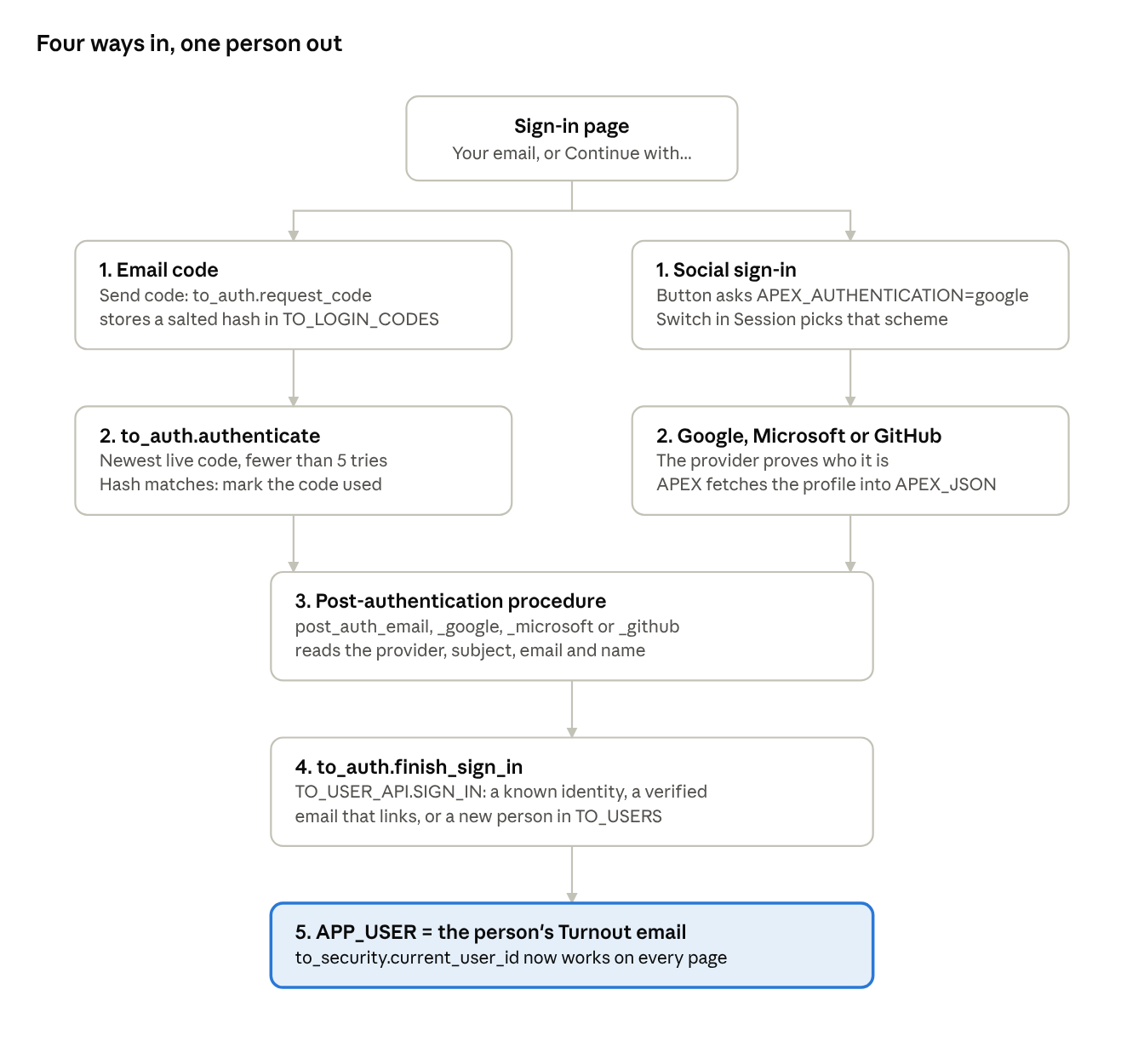
APEX owns steps 1 and 2 for social sign-in; we own them for email codes. Steps 3 to 5 are always ours, so the rules about who someone is live in one package, not four.
Lesson 5.2 One person, many identities
Priya might sign in with an email code on Monday and with Google on Friday. She is still one person, with one set of clubs and RSVPs. That is why Part 2 split people from their sign-ins:
| Table | One row per | Key columns |
|---|---|---|
TO_USERS |
Person | email (unique), display_name, email_verified_at |
TO_USER_IDENTITIES |
Way that person signs in | provider (EMAIL, GOOGLE, MICROSOFT, GITHUB) and subject (the provider's id for them), unique together |
The subject is the provider's permanent id for the person: Google's sub claim, GitHub's numeric id, or for email codes the email itself. Never match on a display name, and never on an email alone: emails change, subjects don't.
TO_USER_API.SIGN_IN, written in Part 3, does the matching in three steps:
- Seen this (provider, subject) before? Same person. Update
last_login_atand return them. - New sign-in, but the provider verified an email we already have? Link it to that person. This is how Priya adds Google to her email-code account.
- Neither? A new person and their first identity.
Step 2 has a guard that is easy to miss: it only links when the email is verified. Lesson 5.5 shows what happens without it.
The last thing every sign-in does is set APP_USER to the person's Turnout email. TO_SECURITY.CURRENT_USER_ID finds people by APP_USER, so from this one line on, every permission check in the app knows who is asking.
Lesson 5.3 Email codes
An email code proves one thing: the person can read mail at that address. That is all a password proves too, after a reset, so Turnout skips the password.
The table
part5_login_codes.sql adds a thirteenth table. Schemas grow with the app, and each change is its own small script you can rerun on any copy.
create table to_login_codes (
    id          number generated by default on null as identity primary key,
    email       varchar2(255 char) not null check (email = lower(email)),
    code_salt   varchar2(32 char)  not null,
    code_hash   varchar2(64 char)  not null,
    expires_at  timestamp with time zone not null,
    attempts    number(2) default on null 0 not null,
    used_at     timestamp with time zone,
    created_at  timestamp with time zone default on null systimestamp not null
);
Six rules, and why each exists
| Rule | Where | Stops |
|---|---|---|
| Store a salted SHA-256 hash, never the code | request_code, standard_hash(salt \|\| code, 'SHA256') |
Anyone who can read the table signing in as anyone |
| A code expires after 10 minutes | expires_at |
An old email in someone's inbox being used later |
| A code works once | used_at |
A code seen over someone's shoulder being reused |
| Only the newest code works | request_code retires older live codes |
Five codes in flight, each with its own five guesses |
| 5 wrong guesses and the code stops working | attempts, counted in an autonomous transaction |
Guessing: 5 tries in a million is 1 in 200,000 |
| 5 codes per email per hour | request_code |
Flooding someone's inbox, or farming guesses |
Why an autonomous transaction for wrong guesses. When sign-in fails, APEX rolls the request back. A plain update attempts = attempts + 1 would be rolled back with it, and the counter would never move. count_wrong_guess uses pragma autonomous_transaction, so its update commits on its own, whatever happens to the rest of the request.
Why the page says the same thing for every email. request_code sends a code to any address, known or not, and the message is always "We sent a six-digit code". A page that said "No account with that email" would tell anyone who is a member of Turnout.
Demo mode
The sample people have example.com addresses, which never receive mail. So the app has an application setting, DEMO_MODE. When it is Y, request_code returns the code and the sign-in page shows it in the success message. It ships as Y so you can sign in as Priya. Set it to N in Shared Components › Application Settings before anyone real uses the app.
Build it: the table, the package and demo mode
- In SQL Workshop › SQL Scripts, upload and run these three, in order:
part5_login_codes.sql(the new table),to_err.sql(three new error codes; it replaces your Part 3 version) andto_auth.sql(the codes and sign-in package). - Check in SQL Commands:
select object_name, status from user_objects where object_name in ('TO_LOGIN_CODES', 'TO_AUTH', 'TO_ERR');lists all three, every row VALID. - Run the tests: open
turnout_auth_tests.sql, copy all of it into SQL Commands, and click Run. Expect 13 PASS. Unlike the Part 3 tests, this script commits, because the wrong-guess counter can only see committed codes. So it uses a test address of its own and deletes its rows at the end. - Create the two settings the sign-in page reads. In App Builder, open Turnout, then Shared Components › Application Settings › Create:
| Name | Value | Required | Valid Values | On Upgrade Keep Value |
|---|---|---|---|---|
DEMO_MODE |
Y |
Yes | Y, N |
Yes |
MAIL_FROM |
no-reply@example.com |
Yes | Yes |
Check: in SQL Commands, select count(*) from to_login_codes where email = 'sign-in.test@example.com'; returns 0: the tests tidied up after themselves.
Lesson 5.4 The custom scheme and the two-step page
APEX has no built-in "email code" scheme, but a Custom scheme needs just one function that answers yes or no: are these credentials good? Turnout's is to_auth.authenticate. The username is the email; the "password" is the six-digit code.
The scheme
Shared Components › Authentication Schemes › Create › Based on a pre-configured scheme › Custom.
| Setting | Value | Why |
|---|---|---|
| Name | Email code | |
| Authentication Function Name | to_auth.authenticate |
Checks the code (Lesson 5.3) |
| Post-Authentication Procedure Name | to_auth.post_auth_email |
Turns the email into a Turnout person (Lesson 5.2) |
| Switch in Session | On | Lets the other schemes be started from buttons |
| Make Current | Yes | Email codes are the default way in |
Build it.
- Shared Components › Authentication Schemes › Create. Choose Based on a pre-configured scheme from the gallery, then Next.
- Name
Email code, Scheme TypeCustom. - Authentication Function Name
to_auth.authenticate. Leave the other fields of the Settings section empty. - Click Create Authentication Scheme. APEX makes it the current scheme straight away; the list shows it with a check mark.
- Open it again. Under Login Processing, set Post-Authentication Procedure Name to
to_auth.post_auth_emailand Switch in Session toEnabled. Under Post-Logout URL, choose Home Page. Apply Changes.
In APEXlang the same scheme is a few lines in shared-components/authentications.apx:
authentication email-code (
    name: Email code
    type: custom
    settings {
        authFunctionName: to_auth.authenticate
    }
    loginProcessing {
        postAuthenticationProcedureName: to_auth.post_auth_email
        switchInSession: true
    }
)
The sign-in page
One page, two steps. A hidden item, P9999_STEP, remembers which step you are on: empty for step 1, CODE for step 2. Every button and the code field has a server-side condition on it, so each step shows only what it needs.
| Step | Shows | Button runs |
|---|---|---|
| 1 | Email, Send code, the social buttons | to_auth.request_code, then sets P9999_STEP := 'CODE' |
| 2 | Email, Code, Sign in, Use a different email | apex_authentication.login(:P9999_EMAIL, :P9999_CODE) |
Two small details make the code field pleasant on a phone: autocomplete="one-time-code" lets iOS and Android offer the code straight from the message, and inputmode="numeric" brings up the number pad.
Build it: the two-step page
Open page 9999 in Page Designer. It has the Username and Password items that Create Application made in Lesson 4.1. You'll change it into the two-step page.
- Delete P9999_PASSWORD and P9999_REMEMBER, and the processes Get Username Cookie, Set Username Cookie and Clear Page(s) Cache. Rename P9999_USERNAME to
P9999_EMAIL. - Set up the items in the region. For the two that don't exist yet, right-click the Login region and choose Create Page Item:
| Item | Type | Settings |
|---|---|---|
P9999_STEP |
Hidden | Sequence 5 |
P9999_EMAIL |
Text Field | Label Email, Session State › Storage Per Session (Persistent) (it was Per Request as the username; without this the email is gone after Send code), Value Placeholder Your email, Icon fa-envelope-o, Maximum Length 255, Custom Attributes autocomplete="email" inputmode="email" |
P9999_CODE |
Text Field | Label Code, Value Placeholder Six-digit code, Icon fa-key, Maximum Length 12, Custom Attributes autocomplete="one-time-code" inputmode="numeric", Session State › Storage Per Request (Memory Only), Server-side Condition expression :P9999_STEP = 'CODE' |
- Buttons in the region. Each has Warn on Unsaved Changes
Do Not Check:
| Button name | Label | Slot | Hot | Server-side Condition (Expression) |
|---|---|---|---|---|
SEND_CODE |
Send code | Next | Yes | :P9999_STEP is null |
LOGIN |
Sign in | Next | Yes | :P9999_STEP = 'CODE' |
CHANGE_EMAIL |
Use a different email | Edit | No | :P9999_STEP = 'CODE' |
- Processing. Keep the Login process, but set Server-side Condition › When Button Pressed to
LOGIN, its p_username parameter to itemP9999_EMAILand p_password to itemP9999_CODE. Then add two processes:
Send code, Execute Code, sequence 10, When Button Pressed SEND_CODE:
declare
    l_code varchar2(6);
begin
    l_code := to_auth.request_code(:P9999_EMAIL);
    :P9999_EMAIL := lower(trim(:P9999_EMAIL));
    :P9999_STEP  := 'CODE';
    apex_application.g_print_success_message :=
        case
            when l_code is not null then
                'Demo mode: your code is ' || l_code
                || '. With demo mode off it arrives by email.'
            else
                'We sent a six-digit code to '
                || apex_escape.html(:P9999_EMAIL)
                || '. It works for ' || to_auth.c_code_minutes || ' minutes.'
        end;
end;
Use a different email, Execute Code, sequence 30, When Button Pressed CHANGE_EMAIL:
:P9999_STEP := null;
- Right-click After Processing, Create Branch: page
9999, Include Process Success Message on. A successful sign-in never reaches it: the Login process redirects to the home page itself. - Shared Components › Authentication Schemes. Your new scheme is current. Open Oracle APEX Accounts and click Delete: nobody signs in with workspace accounts any more.
Check: run the app and click Sign In. Enter priya.raman@example.com and click Send code. The page says "Demo mode: your code is 123456…" and now shows a Code field. Type the code and Sign in. You're on Discover, with priya.raman@example.com in the top bar.
Why the Login process uses the standard API. apex_authentication.login calls your scheme's authentication function, runs the post-authentication procedure, starts the session and redirects to the home page. Calling to_auth.authenticate yourself would skip all of that.
Lesson 5.5 Social sign-in: Google, Microsoft and GitHub
Optional. You need a Google, Microsoft or GitHub developer account to finish this lesson. Without one, read it and move on to Lesson 5.6: the social buttons stay hidden while their settings are N, and nothing else depends on them.
With social sign-in, someone else proves the identity. APEX's Social Sign-In scheme sends the person to the provider, gets them back with a token, and fetches their profile. Your post-authentication procedure then reads that profile from APEX_JSON.
Each provider takes three things: an app registered in its developer console, a web credential in your workspace holding the client ID and secret, and a scheme in Turnout.
1. Register Turnout with the provider
Every provider asks for a redirect URL, the address it sends people back to. For APEX it is always:
https://oracleapex.com/ords/apex_authentication.callback
(On your own server, use your ORDS address with /apex_authentication.callback at the end.)
| Provider | Where | Create | You get |
|---|---|---|---|
| Google Cloud Console › APIs & Services › Credentials | OAuth client ID, type Web application | Client ID, client secret | |
| Microsoft | Microsoft Entra admin center › App registrations | New registration, "accounts in any organizational directory and personal Microsoft accounts" | Application (client) ID; a client secret from Certificates & secrets |
| GitHub | GitHub › Settings › Developer settings › OAuth Apps | New OAuth App | Client ID, client secret |
2. Create the web credentials
If you imported the Finished app, it already has three empty web credentials, Google sign-in, Microsoft sign-in and GitHub sign-in: open Workspace Utilities › Web Credentials and paste each client ID and secret. Building by hand, create each one there with Create: Name Google sign-in (and so on), Authentication Type OAuth2 Client Credentials, then the client ID and secret. Secrets never travel in an app export, so whoever installs Turnout fills these in for their own workspace.
3. The schemes
| Microsoft | GitHub | ||
|---|---|---|---|
| Authentication Provider | OpenID Connect Provider | Generic OAuth2 Provider | |
| Discovery or endpoints | Built in | https://login.microsoftonline.com/common/v2.0/.well-known/openid-configuration |
Authorize https://github.com/login/oauth/authorize, token https://github.com/login/oauth/access_token, user info https://api.github.com/user |
| Scope | profile,email |
profile,email |
read:user,user:email |
| Username | #email# |
#preferred_username# |
#login# |
| Token Authentication Method | Default | Default | Client ID and Client Secret in Body |
| Post-authentication | to_auth.post_auth_google |
to_auth.post_auth_microsoft |
to_auth.post_auth_github |
Each scheme is created like the email-code one (Lesson 5.4), choosing Social Sign-In as the Scheme Type, then the settings above. After creating each, open it and switch Switch in Session on, and make sure Email code stays the current scheme: in the Authentication Schemes list, open Email code and click Make Current Scheme if it lost the check mark.
Then create three more application settings, each with value N, required, valid values Y, N, keep on upgrade: GOOGLE_SIGN_IN, MICROSOFT_SIGN_IN and GITHUB_SIGN_IN. And add a button per provider to page 9999, in position Create, with Action Redirect to URL, and a condition that hides it until its setting is Y:
| Button name | Label | URL | Server-side Condition (Expression) |
|---|---|---|---|
GOOGLE |
Continue with Google | f?p=&APP_ID.:1:&APP_SESSION.:APEX_AUTHENTICATION=google |
:P9999_STEP is null and apex_app_setting.get_value('GOOGLE_SIGN_IN') = 'Y' |
MICROSOFT |
Continue with Microsoft | f?p=&APP_ID.:1:&APP_SESSION.:APEX_AUTHENTICATION=microsoft |
the same, with MICROSOFT_SIGN_IN |
GITHUB |
Continue with GitHub | f?p=&APP_ID.:1:&APP_SESSION.:APEX_AUTHENTICATION=github |
the same, with GITHUB_SIGN_IN |
The part after APEX_AUTHENTICATION= is each scheme's Static ID. APEX makes it from the name you gave the scheme; check it on the scheme's page and use exactly that.
All three have Switch in Session on. Then set the matching application setting, GOOGLE_SIGN_IN, MICROSOFT_SIGN_IN or GITHUB_SIGN_IN, to Y, and its button appears on the sign-in page. Until then the button stays hidden, so nobody clicks into an error.
Trust only verified email: the "nOAuth" lesson
In 2023, security researchers found apps that matched Microsoft sign-ins to existing accounts by the email claim. But some Microsoft accounts let people type any email they like, unverified. So an attacker could set their email to the victim's, click Continue with Microsoft, and walk into the victim's account. The flaw was nicknamed nOAuth.
Turnout's rule is simple: a sign-in may join an existing account only when the provider says it verified the email.
| Provider | Verified? | Turnout does |
|---|---|---|
| Email code | Yes, the person typed the code | Links to an existing account |
Yes, when email_verified is true |
Links to an existing account | |
| Microsoft | Not promised | New accounts only. An existing person adds Microsoft from their profile while signed in (an exercise in Part 8) |
| GitHub | Not promised, and email is often hidden | New accounts only. A hidden email gets "sign in with an email code instead" |
This is the p_email_verified flag in TO_USER_API.SIGN_IN, and the last test in turnout_auth_tests.sql proves it holds.
Lesson 5.6 Switching schemes, signing out, sessions
An APEX app has one current authentication scheme. Turnout's is Email code. The social buttons reach the other three with a request value:
f?p=&APP_ID.:1:&APP_SESSION.:APEX_AUTHENTICATION=google
The request APEX_AUTHENTICATION=<static ID> tells APEX: for this sign-in, use that scheme instead. It only works for schemes with Switch in Session on. In APEXlang the static ID is the name after authentication: email-code, google, microsoft, github. Each button is a plain Redirect to URL with that address.
Signing out
The navigation bar's Sign Out entry points at &LOGOUT_URL., which ends the APEX session for whichever scheme signed the person in. Every scheme's Post-Logout URL is the home page, so people land back on Discover, still able to browse.
Signing out of Turnout does not sign anyone out of Google. That is deliberate: they asked to leave Turnout, not their email.
Sessions
| Setting | Where | Turnout uses | Why |
|---|---|---|---|
| Session Not Valid | Each scheme | Redirect to the login page | An expired session asks you to sign in, not an error page |
| Page access protection | Sign-in page | Arguments must have checksum | Nobody can deep-link into step 2 with someone else's email filled in |
| Rejoin sessions | Security attributes | Disabled | A copied URL with a session id can't hijack a session |
| Session timeout | Security attributes | APEX defaults | Part 13 tunes these for production |
Build it. Shared Components › Security Attributes › Session Management: check that Rejoin Sessions is Disabled and set it if not. Then open each authentication scheme and, under Session Not Valid, set Redirect to Login Page; under Post-Logout URL, choose Home Page.
Who is signed in, from SQL. In any page, process or package, sys_context('APEX$SESSION', 'APP_USER') is the person's Turnout email, and to_security.current_user_id is their TO_USERS.ID. Part 6 builds every permission check on that one function.
Checkpoint
After this part, anyone can sign in to Turnout with an email code, and Google, Microsoft and GitHub are one setting away. Whichever way they come in, APP_USER is their Turnout email.
Test it as Priya
- You've run the three scripts and the tests (13 PASS), and built the scheme and page. Or import the Finished app from the downloads below, which has all of it. Then run
turnout_seed.sqlagain so the sample events are dated from today. Or import the Finished app from the downloads below, which has all of it. - Open the app and click Sign In.
- Enter
priya.raman@example.comand click Send code. Demo mode shows the code at the top of the page. - Type the code and click Sign in. You land on Discover with Priya's email in the navigation bar.
- Open Tuesday Track Intervals. Your RSVP says You're going, with a Cancel my RSVP button: Turnout knows who you are, without a workspace account.
- Sign out, request a code, and type a wrong one five times. The right code no longer works.
Files
| File | Change |
|---|---|
part5_login_codes.sql |
New: the login code table |
to_err.sql |
Three new error codes: email invalid, too many codes, sign-in failed |
to_auth.sql |
New: codes, the authentication function, four post-authentication procedures |
turnout_auth_tests.sql |
New: 13 tests |
turnout/shared-components/authentications.apx (in the app zip) |
Four schemes replace Oracle APEX Accounts |
turnout/workspace-components/credentials/ |
New: empty Google, Microsoft and GitHub web credentials |
turnout/application.apx |
Email code is current; five application settings |
turnout/pages/p09999-login.apx |
The two-step sign-in page with social buttons |
Exercises
- Set up Google sign-in for your workspace and sign in with your own Google account. Check
TO_USER_IDENTITIES: you have a GOOGLE row. - Turn DEMO_MODE off and sign in with your real email. Did the code arrive? Check Monitor Activity › Mail Queue if not.
- GitHub hides most emails. Change
post_auth_githubto callhttps://api.github.com/user/emailswithapex_web_serviceand take the primary, verified one. - Stretch: show "Signed in with Google" on a profile page, from
TO_USER_IDENTITIES.PROVIDERandLAST_LOGIN_AT.
Downloads for Part 5
Everything this part uses. Each file is plain text you can open in any editor before you run it.
- Start hereturnout-app-part-4.zipTurnout at the end of Part 4, if you're starting at Part 5
- Finishedturnout-app-part-5.zipTurnout at the end of Part 5. Import it to compare, or to catch up
- part5 login codespart5_login_codes.sqlLesson 5.3: the login code table
- to errto_err.sqlLesson 5.3: three new error codes
- to authto_auth.sqlLessons 5.3 to 5.6: codes and sign-in
- turnout auth teststurnout_auth_tests.sqlLesson 5.3: 13 tests
- Part 5 kitturnout-part-5.zipEverything above in one zip, with a README
- Start overturnout_reset.sqlRemoves every TO_ object from your schema
Part 5 quiz
5 questions. Get 4 right to pass. You can retake it as often as you like.