A dynamic action makes a page respond while someone is using it, without a full reload: when this happens, if this is true, do these things. You declare it; APEX writes the JavaScript.
Turnout uses four, each teaching one kind:
| Page | When | Does | Teaches |
|---|---|---|---|
| 120 Event editor | The start time changes | Suggests an end two hours later | Running JavaScript in the browser |
| 20 Event | The guest count changes | "You'll take 3 of the 5 spots left" | Running PL/SQL on the server, no reload |
| 120 Event editor | Cancel event is pressed | First press: ask why. Second: confirm, then cancel | Client-side conditions, true and false actions |
| 100 Dashboard | The event dialog closes | Refreshes the cards and chart | Reacting to APEX's own events |
One rule from Part 6 still holds: a dynamic action is layer 2, courtesy. The guest note helps people decide; TO_RSVP_API still decides.
Before you start
You need Turnout as it was at the end of Part 7, with pages 20, 100 and 120 working. If you don't have it, import the Start here app, turnout-app-part-7.zip, from the downloads at the end of this page. No new SQL in this part.
Where dynamic actions live. In Page Designer, the left pane has three tabs at the top: Rendering, Dynamic Actions (the lightning bolt) and Processing. On the Dynamic Actions tab, right-click Events and choose Create Dynamic Action, then pick the event (Change, Click, Page Load) under When. APEX adds one true action, Show, which you change to the action you need.
Lesson 8.1 Anatomy of a dynamic action
Every dynamic action has the same three parts: when (an event on an element), an optional if (a client-side condition), and actions, each marked to run when the condition is true or when it's false.
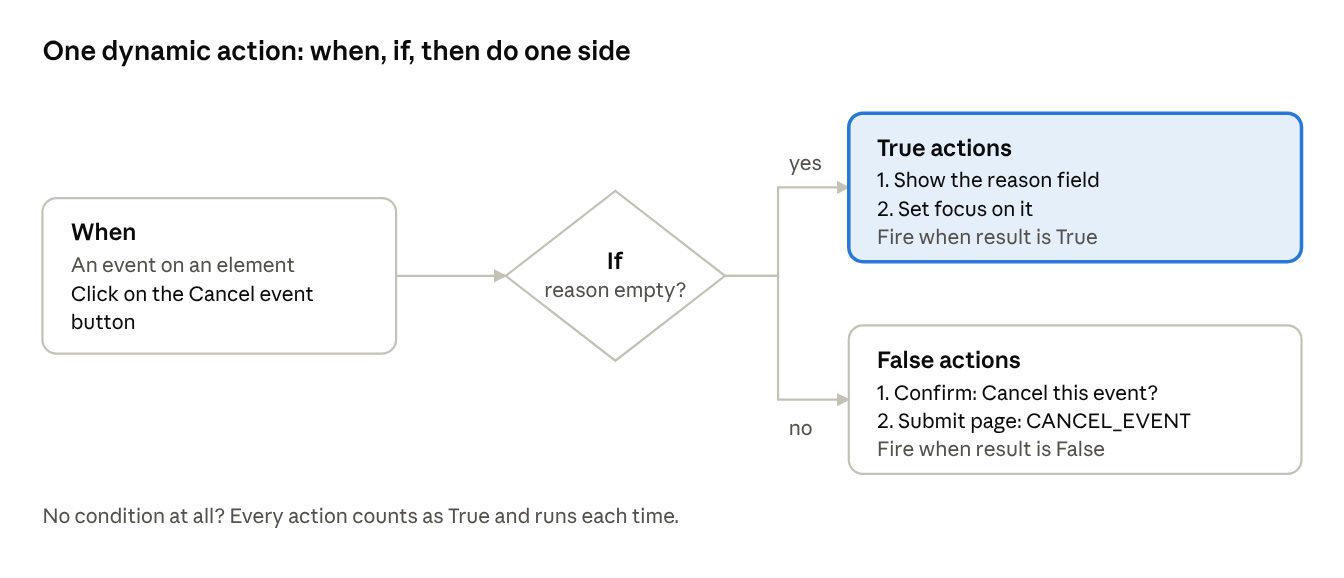
Actions run in sequence order. An action like Confirm can stop the rest: if the person clicks Cancel in the dialog, Submit Page never runs.
Lesson 8.2 Running JavaScript: ends follow starts
Most runs and rides last about two hours. When an organizer picks a start time on page 120, Turnout suggests an end time, but never overwrites one they chose.
| Part | Setting |
|---|---|
| When | Event Change, Item P120_STARTS |
| Action | Execute JavaScript Code |
| Fire on initialization | Off: only when the person changes the start |
const mask   = 'YYYY-MM-DD HH24:MI',
      starts = apex.date.parse($v('P120_STARTS'), mask),
      ends   = apex.date.parse($v('P120_ENDS'), mask);
// Only when the end is empty or now before the start:
// never overwrite an end time someone chose.
if (starts && (!ends || ends <= starts)) {
    $s('P120_ENDS', apex.date.format(apex.date.add(starts, 2, apex.date.UNIT.HOUR), mask));
}
Three APEX JavaScript helpers do all the work:
$v('ITEM')reads an item's value;$s('ITEM', value)sets it, and fires its change event.apex.date.parseandapex.date.formatuse the same Oracle-style masks as the item, soYYYY-MM-DD HH24:MImeans the same thing in the browser and in PL/SQL.apex.date.adddoes the arithmetic, including across midnight.
Why JavaScript here, not the server. Nothing about this needs the database: the answer depends only on what's on screen. Running it in the browser is instant and costs no round trip.
Build it.
- Open page 120. On the Dynamic Actions tab, right-click Change and choose Create Dynamic Action. Name
Ends follow starts; When › Selection Type Item(s), Item(s)P120_STARTS. - Click the true action APEX added. Set Action to Execute JavaScript Code, paste the code above into Code, and switch Fire on Initialization off.
- Save. Run the app, open Clubs › Tampa Runners, click Organize, then New event. (Running page 100 straight from Page Designer doesn't say which club, so it's refused.)
Check: pick a start date and time. The end fills in two hours later. Change the end to three hours later, then move the start by an hour: your end stays.
Lesson 8.3 Running code on the server: the guest count
On page 20, someone choosing guests wants to know before pressing RSVP: is there room for all of us? Only the database knows how many spots are left, so this one runs PL/SQL.
| Part | Setting |
|---|---|
| When | Event Change, Item P20_GUESTS |
| Action | Execute Server-side Code |
| Items to Submit | P20_EVENT_ID, P20_GUESTS |
| Items to Return | P20_GUESTS_NOTE |
declare
    l_left number := to_rsvp_api.spots_left(:P20_EVENT_ID);
    l_need number := 1 + nvl(:P20_GUESTS, 0);
begin
    :P20_GUESTS_NOTE :=
        case
            when l_left is null   then 'You''ll take ' || l_need || ' spots. This event has no limit.'
            when l_left = 0       then 'It''s full, so you''ll join the waitlist.'
            when l_need <= l_left then 'You''ll take ' || l_need || ' of the ' || l_left || ' spots left.'
            else 'Only ' || l_left || ' spots left, so you''ll join the waitlist.'
        end;
end;
Items to Submit sends the browser's current values to the server first; without it, the code would see the values from when the page loaded. Items to Return sends P20_GUESTS_NOTE back and updates it on screen. Forgetting either is the most common dynamic action bug.
The note uses to_rsvp_api.spots_left, the same function the RSVP itself uses, so the page can never promise a spot the API won't give.
Build it.
- Open page 20. Right-click the Event region (the one holding
P20_GUESTS) and choose Create Page Item:
| Property | Value |
|---|---|
| Name | P20_GUESTS_NOTE |
| Type | Display Only |
| Sequence | 110, so it sits right after the guest count |
| Label | leave empty |
| Template | Optional - Above |
| Server-side Condition › Type | Expression |
| PL/SQL Expression | :APP_USER <> 'nobody' and nvl(:P20_MY_STATUS, 'NONE') not in ('GOING', 'WAITLISTED') |
The condition is the same one the RSVP button and the guest count use: show the note only to someone signed in who hasn't RSVPed.
- Dynamic Actions tab: right-click Change, Create Dynamic Action. Name
Explain the guest count, Item(s)P20_GUESTS. - Click the true action. Action Execute Server-side Code, Language PL/SQL, paste the code above. Items to Submit
P20_EVENT_ID,P20_GUESTS; Items to ReturnP20_GUESTS_NOTE; Fire on Initialization off.
Check: sign in as lucas.moreno@example.com, a Tampa Runners member who isn't going yet, and open Saturday Long Run. Type 2 in Guests and press Tab: "You'll take 3 spots. This event has no limit." The note appears when the field loses focus, because that's when Change fires.
Lesson 8.4 Conditions and false actions: a two-step Cancel event
Cancelling an event emails everyone, so Turnout needs a reason first. Instead of an error after submitting, the button guides the organizer:
- First press, no reason yet: the reason field appears and the cursor goes into it.
- Second press, with a reason: "Cancel this event? Everyone going or waiting gets an email." Then the page submits.
One dynamic action does both, using a client-side condition and false actions:
| Part | Setting |
|---|---|
| When | Event Click, Button Cancel event (its action is "Defined by Dynamic Action") |
| Client-side condition | Item P120_CANCEL_REASON is null |
| True actions (condition holds) | Show P120_CANCEL_REASON, then Set Focus on it |
| False actions (it doesn't) | Confirm with the message, then Submit Page with request CANCEL_EVENT |
Each action has Fire When Event Result Is: True or False. The condition is checked once per click, and only one side runs.
A second, simpler dynamic action hides the reason field when the page loads (event Page Load, action Hide). That's the usual pattern: hide on load, show when needed.
Why Confirm is an action, not a button setting. A button's own "requires confirmation" always asks. Here the question should come only on the second press, so it belongs in the false actions, after the condition.
Build it.
- Open page 120 and click the CANCEL_EVENT button. Under Behavior, set Action to Defined by Dynamic Action. That also removes the confirmation from Part 7, which the dynamic action now does.
- Click item P120_CANCEL_REASON. In Part 7 it had a server-side condition, so it only exists for drafts and published events. Leave that as it is.
- Dynamic Actions tab: right-click Page Load, Create Dynamic Action, Name
Hide the reason until it's needed. Set its true action to Hide, Affected Elements Item(s)P120_CANCEL_REASON. - Right-click Click, Create Dynamic Action. Name
Cancel the event; When › Selection Type Button, ButtonCANCEL_EVENT. - Still on that dynamic action, under Client-side Condition: Type Item is null, Item
P120_CANCEL_REASON. - True actions. Set the first to Show, Item(s)
P120_CANCEL_REASON, Fire on Initialization off. Right-click True and Create TRUE Action: Set Focus, Item(s)P120_CANCEL_REASON. - False actions. Right-click the dynamic action Cancel the event and choose Create FALSE Action. First Confirm: Message
Cancel this event? Everyone going or waiting gets an email with your reason., Style Danger. Then Submit Page: Request / Button NameCANCEL_EVENT, Show Processing on.
The process from Part 7, Cancel event, runs when the request is CANCEL_EVENT, so it still works: the Submit Page action sends that request just as the button did.
Check: open an event you created on page 100 and press Cancel event. The reason field appears with the cursor in it. Type a reason, press again, and confirm: the dialog closes and the card is gone. Press Cancel in the confirm box instead and nothing happens.
Lesson 8.5 Refreshing after a dialog closes
When the event editor (page 120) saves and closes, the dashboard behind it (page 100) is out of date. APEX fires its own event, Dialog Closed, on the element that opened the dialog. Page 100 listens for it twice, because two kinds of element open the dialog:
| Dynamic action | Listens on | Refreshes |
|---|---|---|
| Refresh after the event dialog | The Upcoming events region (its Edit buttons) | Upcoming events, Who's coming chart |
| Refresh after the event dialog | The New event button | Upcoming events, Who's coming chart |
Each has two Refresh actions, one per region. A refreshed region re-runs its query, so the new event appears in the cards and the chart without reloading the page or losing the scroll position.
Build it. Nothing to do: you built both of these on page 100 in Part 7. Open page 100's Dynamic Actions tab now and look at them under Dialog Closed; you'll recognize the parts from Lesson 8.1.
Lesson 8.6 When not to use a dynamic action
Dynamic actions are easy to overuse. Reach for something simpler first:
| You want | Use instead | Why |
|---|---|---|
| Show a button only to organizers | A server-side condition | The button never reaches the browser, so it can't be un-hidden |
| Stop a bad value being saved | A validation, and the API | A dynamic action can be skipped; the server can't |
| Make a field required | Item › Value Required | APEX checks it on the server and marks it on screen |
| Format a date for display | A format mask | No code at all |
The test: if turning JavaScript off would make the app wrong, not just less pleasant, the logic belongs on the server.
Lesson 8.7 Debugging dynamic actions
When a dynamic action does nothing, check these in order:
- Is it firing? Open the browser console and run
apex.debug.setLevel(apex.debug.LOG_LEVEL.APP_TRACE), then repeat the action. Each dynamic action logs as it fires. - Fire on initialization. On for a Page Load action, off for a Change action that should wait for the person.
- Items to Submit and Return. Server-side code sees stale values without the first, and changes nothing on screen without the second.
- The element. A dynamic action on an item that a server-side condition didn't render has nothing to listen to.
- The server side. Turn on Debug in the developer toolbar and look for the AJAX call in View Debug.
Checkpoint
The event editor suggests end times and walks organizers through cancelling, the event page explains guests before anyone commits, and the dashboard stays current behind its dialog.
Try it
- As Priya, open Tampa Runners › Organize › New event. Pick a start time: the end fills in two hours later. Change the end yourself, then the start again: your end stays.
- Save an event, edit it, press Cancel event: the reason field appears. Type a reason and press again: confirm, and it's cancelled.
- As Lucas Moreno, who isn't going yet, open Saturday Long Run, type 2 guests and press Tab: "You'll take 3 spots. This event has no limit."
Files
| File | Change |
|---|---|
pages/p00120-edit-event.apx |
Ends follow starts; hide the reason on load; the two-step Cancel event |
pages/p00020-event.apx |
P20_GUESTS_NOTE and the guest-count dynamic action |
pages/p00100-organize.apx |
Refresh after the event dialog (built in Part 7) |
Exercises
- On page 130, set the Here so far region's Static ID to
here, then refresh it every 30 seconds withsetIntervalandapex.region('here').refresh(), so two volunteers at two doors see each other's check-ins. - On page 40, add a Remove link to each sign-in method. Clicking it runs
to_user_api.unlink_identityas server-side code and refreshes the report. - Link a second sign-in method from the Profile page (the Part 5 exercise): store the signed-in person's id before switching schemes, and link in the post-authentication procedure.
- Stretch: on page 1, add a Smart Filters region so people can filter Discover by category and city without a reload.
Downloads for Part 8
Everything this part uses. Each file is plain text you can open in any editor before you run it.
- Start hereturnout-app-part-7.zipTurnout at the end of Part 7, if you're starting at Part 8
- Finishedturnout-app-part-8.zipTurnout at the end of Part 8. Import it to compare, or to catch up
- Part 8 kitturnout-part-8.zipEverything above in one zip, with a README
- Start overturnout_reset.sqlRemoves every TO_ object from your schema
Part 8 quiz
5 questions. Get 4 right to pass. You can retake it as often as you like.