In this part Turnout gets the pages people use every week: their own events, ticket, clubs and profile, and for organizers a dashboard, a members grid, an event editor, check-in at the door and attendance. Nine new pages, fifteen in all counting the sign-in page, plus the global page.
Every page here follows one rule from Part 3: pages read with SQL, and change things only through the API packages. A grid that edits roles calls TO_CLUB_API, not an UPDATE. The event editor calls TO_EVENT_API, so a capacity that drops below the people already going is refused here exactly as in the tests.
Two more habits run through every page:
- Every query filters by the person. My events reads
where r.user_id = to_security.current_user_id. Change an id in the URL and you get nothing, not someone else's data. - Every organizer page checks the role when it loads, with
to_security.require_club_role. The authorization schemes you made in Part 6 sit on top, so a page a person can't use never even appears in their menus.
The lessons go page by page. For each one: what it's for, how it's built, and the one APEX feature it teaches.
Before you start
You need Turnout as it was at the end of Part 6: sign-in, the Is Organizer and Is Site Admin schemes, and page 200. If you don't have it, import the Start here app, turnout-app-part-6.zip, from the downloads at the end of this page. There's no new SQL in this part: every package the pages call is already in your schema.
This is the longest part of the course: nine pages. Each lesson ends with a Build it list that gives every region, item, button and process with its exact settings and code. Three habits make it go faster:
- Create every page the same way. Create Page › Blank Page, type the number and name, and leave Use Breadcrumb and Use Navigation off in the wizard. You'll add the menu entries yourself, so they get the right conditions.
- Find the setting by its path. "Attributes › Title › Column" means: select the region in the tree, click the Attributes tab in the Property Editor, and find Column under Title. Type the first word in the Property Editor's filter box to jump to it.
- Run the page after each region. An error in a query is easiest to fix right after you paste it.
Stuck on one page? Import the Finished app, turnout-app-part-7.zip, as a new application, then open the same page in both and compare them side by side.
Lesson 7.0 The page map
Turnout numbers its pages by who may open them, so the number alone tells you the rule. Part 6 turned each zone into an authorization scheme.
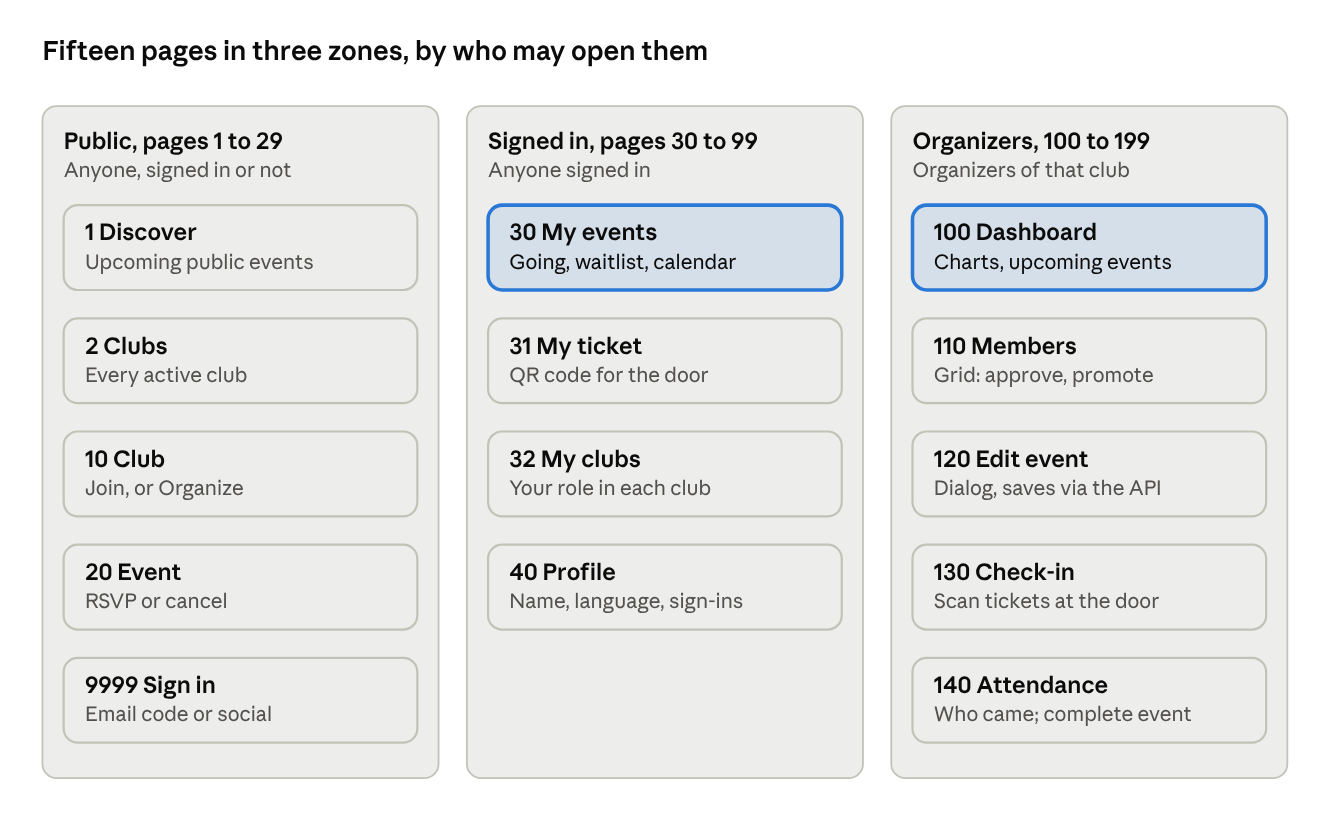
The highlighted pages are the front doors: My events in the menu once you're signed in, and the club dashboard from the Organize button on a club you run. Every other page in a zone opens from one of those two.
Lessons 7.1 to 7.4 The public pages, revisited
You built the four public pages in Part 4. Part 7 adds to each of them:
| Page | Built in Part 4 | Added in Part 7 |
|---|---|---|
| 1 Discover | Cards of upcoming public events | Signed-in people see the same, plus My events in the menu |
| 2 Clubs | Cards of active public clubs | Nothing yet. Its hero arrives in Part 9 |
| 10 Club | Club details, upcoming events, Join | An Organize button for organizers, opening page 100 |
| 20 Event | Details, RSVP and Cancel | The RSVP message points to My events, which now exists |
The Organize button is the first page element that only some signed-in people see. Its server-side condition calls the same function the API uses:
serverSideCondition {
    type: expression
    plsqlExpression: to_security.has_club_role_yn(:P10_CLUB_ID, to_security.c_organizer) = 'Y'
}
Hiding the button is courtesy, not security: page 100 checks the role again when it loads. Part 6 explained why you always need both.
Build it.
- Page 10, the Organize button. Open page 10, right-click the Club region and choose Create Button:
| Property | Value |
|---|---|
| Button Name | ORGANIZE |
| Label | Organize |
| Slot | Edit |
| Hot | On |
| Behavior › Action | Redirect to Page in this Application: page 100, set P100_CLUB_ID to &P10_CLUB_ID., Clear Cache 100 |
| Server-side Condition › Type | Expression |
| PL/SQL Expression | to_security.has_club_role_yn(:P10_CLUB_ID, to_security.c_organizer) = 'Y' |
- Page 20, the RSVP message. Open page 20, Processing tab, process RSVP. In its code, change
'You''re going. See you there.'to'You''re going. Your ticket will be in My events.' - The menus. These point at pages you haven't built yet, which is fine: build pages 30, 32 and 40 next and the links start working.
- Shared Components › Navigation Menu, open Navigation Menu, Create Entry: Sequence
30, Image/Classfa-calendar-check-o, List Entry LabelMy events, Target page30, and under Conditions, Condition TypeUser is Authenticated (not public). Create. - Again: Sequence40, Image/Classfa-star-o, labelMy clubs, page32, same condition. - Shared Components › Navigation Bar List, open Navigation Bar, Create Entry: Sequence15, Parent List Entry&APP_USER., Image/Classfa-user-edit, labelProfile, page40, conditionUser is Authenticated. - One more under the same parent: Sequence20, label---, Target type URL, URL Targetseparator, conditionUser is Authenticated. That draws a line between Profile and Sign Out.
Check: sign in as Priya and open Tampa Runners: the Organize button is there. Sign in as Grace, a plain member of Tampa Runners, and it isn't. The user menu shows Profile, a line, and Sign Out.
Lesson 7.5 My events: two lists and a calendar
Page 30 answers "what am I doing this week?" It has three regions, because going and waiting ask different things of you.
| Region | Type | Shows | Its button |
|---|---|---|---|
| You're going | Cards | Upcoming events you're GOING to, with "+2 guests" | My ticket, to page 31 |
| On the waitlist | Cards | Events you're WAITLISTED for, with "Number 2 in line" | None: the title opens the event |
| Calendar | Calendar | Everything you RSVPed to, past and coming, green for going and yellow for waiting | Clicking an event opens page 20 |
Why two card regions, not one. A card action can't be shown on some rows and hidden on others. Waiting people have no ticket yet, so a single list would show a ticket button that leads nowhere. Two regions keep every button honest.
Card actions
Cards can have a full card action (the whole card is a link), a title action, or buttons. A full-card link and buttons on the same card fight for the same tap, so the going list uses a title link plus a hot My ticket button:
action ticket (
    type: button
    label: My ticket
    layout {
        position: primary
        sequence: 20
    }
    appearance {
        displayType: textWithIcon
        icon: fa-qrcode
        hot: true
    }
    behavior {
        type: redirectThisApp
        target: {
            page: 31
            items: { P31_RSVP_ID: &RSVP_ID. }
        }
    }
)
The calendar and time zones
The Calendar region wants plain dates, but Turnout stores TIMESTAMP WITH TIME ZONE. Convert each event into its club's own zone first, then drop the zone:
cast(e.starts_at at time zone c.time_zone as date) as start_date
Now a 7:00 AM run in Tampa sits at 7:00 AM on the calendar, wherever the person is. The CSS_CLASS column picks the color: apex-cal-green, apex-cal-yellow or apex-cal-gray are built into Universal Theme.
Build it.
Create the page. In App Builder, open Turnout and click Create Page. Choose Blank Page and give it these. Under Navigation, switch Use Breadcrumb and Use Navigation off (they start on).
| Property | Value |
|---|---|
| Page Number | 30 |
| Name | My Events |
Then click the page name at the top of the tree and set, in the Property Editor:
| Property | Value |
|---|---|
| Alias (APEX fills it in from the name; check it) | MY-EVENTS |
| Title | My events |
| Security › Page Access Protection | Arguments Must Have Checksum |
Regions. In the Rendering tree, right-click Body and choose Create Region for each. A new page only shows the slots it uses, so for a region that belongs in another slot (such as Breadcrumb Bar), create it in Body and then set Layout › Slot.
Region My events, type Static Content, in the Breadcrumb Bar slot. Appearance › Template: Hero. Source › HTML Code:
Where you're going, where you're waiting, and everything in one calendar.
Region Going, type Cards. Title You're going.
Source › Type SQL Query:
select r.id as rsvp_id,
       e.id as event_id,
       e.title,
       c.name as club_name,
       cat.name as category,
       to_char(e.starts_at at time zone c.time_zone,
               'fmDy, Mon DD "at" HH:fmMI AM') as event_when,
       nvl(v.name, 'Meeting point to be announced') as venue_name,
       case when r.guests = 1 then '+1 guest'
            when r.guests > 1 then '+' || r.guests || ' guests'
            else 'Going' end as badge
  from to_rsvps r
  join to_events e       on e.id = r.event_id
  join to_clubs c        on c.id = e.club_id
  join to_categories cat on cat.id = c.category_id
  left join to_venues v  on v.id = e.venue_id
 where r.user_id   = to_security.current_user_id
   and r.status    = 'GOING'
   and e.status    = 'PUBLISHED'
   and e.ends_at   > systimestamp
 order by e.starts_at
Set Attributes › Title › Column: TITLE; Attributes › Subtitle › Column: CLUB_NAME; Attributes › Body › Column: EVENT_WHEN; Attributes › Secondary Body › Column: VENUE_NAME; Attributes › Icon and Badge › Icon Source: initials; Attributes › Icon and Badge › Icon Column: CATEGORY; Attributes › Icon and Badge › Badge Column: BADGE; Attributes › Card › Primary Key Column 1: RSVP_ID; Attributes › Messages › When No Data Found: Nothing yet. Find something on Discover..
Under the region, right-click Actions and choose Create Action for each:
- Action Title, link to page 20, set P20_EVENT_ID =
&EVENT_ID., clear cache 20. - Action Button labelled
My ticket(position primary), link to page 31, set P31_RSVP_ID =&RSVP_ID., clear cache 31, Display Type Text with Icon, iconfa-qrcode, Hot.
Region Waiting, type Cards. Title On the waitlist.
Source › Type SQL Query:
select r.id as rsvp_id,
       e.id as event_id,
       e.title,
       c.name as club_name,
       cat.name as category,
       to_char(e.starts_at at time zone c.time_zone,
               'fmDy, Mon DD "at" HH:fmMI AM') as event_when,
       'Number ' || r.waitlist_position || ' in line' as badge
  from to_rsvps r
  join to_events e       on e.id = r.event_id
  join to_clubs c        on c.id = e.club_id
  join to_categories cat on cat.id = c.category_id
 where r.user_id = to_security.current_user_id
   and r.status  = 'WAITLISTED'
   and e.status  = 'PUBLISHED'
   and e.ends_at > systimestamp
 order by e.starts_at
Set Attributes › Title › Column: TITLE; Attributes › Subtitle › Column: CLUB_NAME; Attributes › Body › Column: EVENT_WHEN; Attributes › Icon and Badge › Icon Source: initials; Attributes › Icon and Badge › Icon Column: CATEGORY; Attributes › Icon and Badge › Badge Column: BADGE; Attributes › Card › Primary Key Column 1: RSVP_ID; Attributes › Messages › When No Data Found: You're not waiting for anything..
Under the region, right-click Actions and choose Create Action for each:
- Action Title, link to page 20, set P20_EVENT_ID =
&EVENT_ID., clear cache 20.
Region Calendar, type Calendar. Source › Type SQL Query:
select e.id,
       e.title,
       cast(e.starts_at at time zone c.time_zone as date) as start_date,
       cast(e.ends_at   at time zone c.time_zone as date) as end_date,
       case r.status
           when 'GOING'      then 'apex-cal-green'
           when 'WAITLISTED' then 'apex-cal-yellow'
           else                   'apex-cal-gray'
       end as css_class
  from to_rsvps r
  join to_events e on e.id = r.event_id
  join to_clubs c  on c.id = e.club_id
 where r.user_id = to_security.current_user_id
   and r.status in ('GOING', 'WAITLISTED', 'ATTENDED')
Set Attributes › Settings › Display Column: TITLE; Attributes › Settings › Start Date Column: START_DATE; Attributes › Settings › End Date Column: END_DATE; Attributes › Settings › Primary Key Column: ID; Attributes › Settings › CSS Class: CSS_CLASS; Attributes › Settings › Show Time: On; Attributes › Settings › Calendar Views and Navigation (tick each one): month week list navigation; Attributes › Settings › View / Edit Link: page 20, set P20_EVENT_ID = &ID., clear cache 20.
Check: sign in as Priya and open My events. Tuesday Track Intervals, Saturday Long Run and Blitz Night are among the events under You're going (the sample data adds more); the calendar shows them in green, and Sunrise 5K, which she went to last week, in gray.
Lesson 7.6 My ticket: a QR code you can't forge
Page 31 shows one ticket: the event, who it's for, when and where, and a QR code. An organizer scans the code at the door on page 130.
The code holds the RSVP's check-in token, the random value TO_RSVP_API creates when someone is GOING. APEX's QR Code item draws it: set the item's value and APEX renders the picture. No library, no JavaScript.
Three locks on one page
A ticket is worth protecting: anyone with someone's token could check in as them.
| Lock | Setting | Stops |
|---|---|---|
| Checksum on the URL | Page › Security › Page Access Protection: Arguments Must Have Checksum | Editing P31_RSVP_ID in the address bar. APEX adds a checksum to every link it builds; a hand-made link is refused |
| Only your tickets | The load query has and r.user_id = to_security.current_user_id |
Seeing someone else's ticket even with a valid link |
| Only live tickets | and r.status = 'GOING' |
Showing a cancelled or used ticket |
If any lock fails, the load process raises a friendly error:
exception
    when no_data_found then
        to_err.raise_error(to_err.c_ticket_invalid,
            'There''s no ticket here. Tickets appear in My events once you''re going.');
Why all three. The checksum stops casual tampering; the query rules stop everything else. Never rely on the checksum alone: a link that was valid yesterday is still valid after the RSVP is cancelled.
Build it.
Create the page. In App Builder, open Turnout and click Create Page. Choose Blank Page and give it these. Under Navigation, switch Use Breadcrumb and Use Navigation off (they start on).
| Property | Value |
|---|---|
| Page Number | 31 |
| Name | My Ticket |
Then click the page name at the top of the tree and set, in the Property Editor:
| Property | Value |
|---|---|
| Alias (APEX fills it in from the name; check it) | TICKET |
| Title | My ticket |
| Security › Page Access Protection | Arguments Must Have Checksum |
Regions. In the Rendering tree, right-click Body and choose Create Region for each. A new page only shows the slots it uses, so for a region that belongs in another slot (such as Breadcrumb Bar), create it in Body and then set Layout › Slot.
Region Ticket, type Static Content. Title &P31_EVENT..
Items. Right-click the region and choose Create Page Item:
| Name | Type | Region | Label | Notes |
|---|---|---|---|---|
| P31_RSVP_ID | Hidden | Ticket | ||
| P31_EVENT | Hidden | Ticket | ||
| P31_WHO | Display Only | Ticket | Ticket for | Template Optional - Above |
| P31_WHEN | Display Only | Ticket | When | Template Optional - Above |
| P31_WHERE | Display Only | Ticket | Where | Template Optional - Above |
| P31_QR | QR Code | Ticket | Show this at the door | Template Optional - Above |
Processes. For a Before Header process, stay in the Rendering tab and right-click Pre-Rendering › Before Header. For the others, open the Processing tab and right-click Processing. Choose Create Process:
Process Load ticket (Pre-Rendering › Before Header), type Execute Code.
begin
    select e.title,
           u.display_name
             || case when r.guests > 0 then ' and ' || r.guests || ' guest'
                     || case when r.guests > 1 then 's' end end,
           to_char(e.starts_at at time zone c.time_zone,
                   'fmDay, Month DD "at" HH:fmMI AM'),
           nvl(v.name || nvl2(v.notes, '. ' || v.notes, null),
               'Meeting point to be announced'),
           r.checkin_token
      into :P31_EVENT, :P31_WHO, :P31_WHEN, :P31_WHERE, :P31_QR
      from to_rsvps r
      join to_users u       on u.id = r.user_id
      join to_events e      on e.id = r.event_id
      join to_clubs c       on c.id = e.club_id
      left join to_venues v on v.id = e.venue_id
     where r.id      = :P31_RSVP_ID
       and r.user_id = to_security.current_user_id
       and r.status  = 'GOING';
exception
    when no_data_found then
        to_err.raise_error(to_err.c_ticket_invalid,
            'There''s no ticket here. Tickets appear in My events once you''re going.');
end;
Check: from My events, click My ticket on Tuesday Track Intervals: you see a QR code, and your name under Ticket for. Now copy the URL, change the P31_RSVP_ID value by one, and load it: APEX refuses it, because the checksum no longer matches.
Lesson 7.7 My clubs
Page 32 is one Cards region over TO_CLUB_MEMBERS, filtered to the person, with the role as the badge: Owner, Organizer, Member, or Waiting for approval. Clubs where you run things sort first, so organizers find their clubs without scrolling:
order by case m.role when 'OWNER' then 1 when 'ORGANIZER' then 2 else 3 end,
         c.name
The body shows a count of upcoming events from a scalar subquery: a small select count(*) inside the select list. It's fine for a page of a dozen clubs; Part 13 shows when to replace it with a join.
Build it.
Create the page. In App Builder, open Turnout and click Create Page. Choose Blank Page and give it these. Under Navigation, switch Use Breadcrumb and Use Navigation off (they start on).
| Property | Value |
|---|---|
| Page Number | 32 |
| Name | My Clubs |
Then click the page name at the top of the tree and set, in the Property Editor:
| Property | Value |
|---|---|
| Alias (APEX fills it in from the name; check it) | MY-CLUBS |
| Title | My clubs |
| Security › Page Access Protection | Arguments Must Have Checksum |
Regions. In the Rendering tree, right-click Body and choose Create Region for each. A new page only shows the slots it uses, so for a region that belongs in another slot (such as Breadcrumb Bar), create it in Body and then set Layout › Slot.
Region My clubs, type Static Content, in the Breadcrumb Bar slot. Appearance › Template: Hero. Source › HTML Code:
The clubs you belong to, and the ones waiting to let you in.
Region Clubs, type Cards. Appearance › Template: Cards Container. Source › Type SQL Query:
select c.id,
       c.name,
       cat.name || ' · ' || c.city as kind_and_city,
       c.description,
       cat.name as category,
       case
           when m.status = 'PENDING' then 'Waiting for approval'
           when m.role   = 'OWNER'   then 'Owner'
           when m.role   = 'ORGANIZER' then 'Organizer'
           else 'Member'
       end as role_label,
       (select count(*)
          from to_events e
         where e.club_id   = c.id
           and e.status    = 'PUBLISHED'
           and e.starts_at > systimestamp) || ' upcoming events' as upcoming
  from to_club_members m
  join to_clubs c        on c.id = m.club_id
  join to_categories cat on cat.id = c.category_id
 where m.user_id = to_security.current_user_id
   and m.status in ('ACTIVE', 'PENDING')
   and c.status = 'ACTIVE'
 order by case m.role when 'OWNER' then 1 when 'ORGANIZER' then 2 else 3 end,
          c.name
Set Attributes › Title › Column: NAME; Attributes › Subtitle › Column: KIND_AND_CITY; Attributes › Body › Column: DESCRIPTION; Attributes › Secondary Body › Column: UPCOMING; Attributes › Icon and Badge › Icon Source: initials; Attributes › Icon and Badge › Icon Column: NAME; Attributes › Icon and Badge › Badge Column: ROLE_LABEL; Attributes › Card › Primary Key Column 1: ID; Attributes › Messages › When No Data Found: You haven't joined a club yet. Browse Clubs to find one..
Under the region, right-click Actions and choose Create Action for each:
- Action Full Card, link to page 10, set P10_CLUB_ID =
&ID., clear cache 10.
Check: as Priya, My clubs shows Tampa Runners as Organizer and Bay Chess Club as Member. Clicking a card opens the club.
Lesson 7.8 Profile and linked sign-ins
Page 40 is the first page that changes the person's own data. It has a form and a report.
The form loads with one query and saves with one call:
to_user_api.update_profile(
    p_display_name       => :P40_DISPLAY_NAME,
    p_preferred_language => :P40_LANGUAGE,
    p_time_zone          => :P40_TIME_ZONE);
Notice what isn't there: no user id. update_profile works out who is signed in itself, so nobody can save someone else's profile by changing a hidden item.
Don't lose what they typed. The load process has a condition, :P40_EMAIL is null. Without it, a failed save would re-run the load and overwrite the person's edits with what's in the table. With it, the page loads from the table once, then keeps session state.
The report lists every row in TO_USER_IDENTITIES for the person: Email code, Google, and so on, with when each was last used. It's the visible side of Lesson 5.2: one person, many ways in.
Two list values are worth noticing. The Language list offers English and Español, ready for Part 12. The Time zone list starts with Same as each club, a null value that means "show every event in its club's own time", which is the right default for a local app.
Build it.
Create the page. In App Builder, open Turnout and click Create Page. Choose Blank Page and give it these. Under Navigation, switch Use Breadcrumb and Use Navigation off (they start on).
| Property | Value |
|---|---|
| Page Number | 40 |
| Name | Profile |
Then click the page name at the top of the tree and set, in the Property Editor:
| Property | Value |
|---|---|
| Alias (APEX fills it in from the name; check it) | PROFILE |
| Title | Profile |
| Security › Page Access Protection | Arguments Must Have Checksum |
Regions. In the Rendering tree, right-click Body and choose Create Region for each. A new page only shows the slots it uses, so for a region that belongs in another slot (such as Breadcrumb Bar), create it in Body and then set Layout › Slot.
Region Details, type Static Content. Title Your details.
Region Sign-ins, type Classic Report. Title Ways you sign in.
Source › Type SQL Query:
select case provider
           when 'EMAIL'     then 'Email code'
           when 'GOOGLE'    then 'Google'
           when 'MICROSOFT' then 'Microsoft'
           when 'GITHUB'    then 'GitHub'
       end as method,
       provider_email,
       last_login_at
  from to_user_identities
 where user_id = to_security.current_user_id
 order by last_login_at desc nulls last
Set Attributes › Messages › When No Data Found: No sign-ins yet..
Expand Columns under the region and set:
| Column | Heading | Appearance › Format Mask |
|---|---|---|
| METHOD | Method | |
| PROVIDER_EMAIL | ||
| LAST_LOGIN_AT | Last used | SINCE |
Items. Right-click the region and choose Create Page Item:
| Name | Type | Region | Label | Notes |
|---|---|---|---|---|
| P40_EMAIL | Display Only | Details | Template Optional - Above | |
| P40_DISPLAY_NAME | Text Field | Details | Name | Template Required - Above; Value Required: On; Max Length 100 |
| P40_LANGUAGE | Select List | Details | Language | Template Required - Above; display = return: English = en, Español = es; help text: Turnout in Spanish arrives in Part 12. |
| P40_TIME_ZONE | Select List | Details | Time zone | Template Optional - Above; display = return: Eastern = America/New_York, Central = America/Chicago, Mountain = America/Denver, Arizona = America/Phoenix, Pacific = America/Los_Angeles, Alaska = America/Anchorage, Hawaii = Pacific/Honolulu; Display Null Value: On, Null Display Value Same as each club; Display Extra Values: On |
Buttons. Right-click the region and choose Create Button:
| Button Name | Label | Region | Action | Notes |
|---|---|---|---|---|
| SAVE | Save | Details | Submit Page | Hot; slot Edit |
Processes. For a Before Header process, stay in the Rendering tab and right-click Pre-Rendering › Before Header. For the others, open the Processing tab and right-click Processing. Choose Create Process:
Process Load profile (Pre-Rendering › Before Header), type Execute Code. Server-side Condition: Expression :P40_EMAIL is null.
select email, display_name, preferred_language, time_zone
  into :P40_EMAIL, :P40_DISPLAY_NAME, :P40_LANGUAGE, :P40_TIME_ZONE
  from to_users
 where id = to_security.require_user_id;
Process Save profile (Processing), type Execute Code. When Button Pressed: SAVE; Success Message: Saved..
to_user_api.update_profile(
    p_display_name       => :P40_DISPLAY_NAME,
    p_preferred_language => :P40_LANGUAGE,
    p_time_zone          => :P40_TIME_ZONE);
Branch. Right-click After Processing, choose Create Branch, and set Behavior › Target to page 40, with Include Process Success Message on.
Check: open Profile from the user menu. Ways you sign in lists Email code and Google for Priya. Change your name, Save, and the page shows Saved.
Lesson 7.9 The organizer dashboard
Page 100 is where an organizer starts. It answers two questions with charts, then lists the work.
| Region | Type | Question it answers |
|---|---|---|
| Who's coming to what's next | Bar chart, horizontal, stacked: Going and On the waitlist | Do I need a bigger venue, or more marketing? |
| Did people show up? | Bar chart, stacked: Came and RSVPed, didn't come, last 6 events | Are RSVPs turning into people? |
| Upcoming events | Cards with Edit, Check in and Attendance buttons | What do I do next? |
Pick the chart from the question. "Who's coming" compares events, so it's a bar per event. Stacking Going and Waitlist shows total demand at a glance: a long waitlist segment means people want in. "Did people show up" compares the parts of each RSVP list, so it stacks too.
One series per measure
A chart region holds series, each with its own query returning a label and a value. Both series must return the same labels in the same order, or the bars won't line up:
select e.title || ', ' || to_char(e.starts_at at time zone c.time_zone, 'fmMon DD') as label,
       (select nvl(sum(1 + r.guests), 0) from to_rsvps r
         where r.event_id = e.id and r.status = 'GOING') as value
  from to_events e
  join to_clubs c on c.id = e.club_id
 where e.club_id = :P100_CLUB_ID
   and e.status = 'PUBLISHED'
   and e.starts_at > systimestamp
 order by e.starts_at
 fetch first 6 rows only
Going counts 1 + guests: three people bringing one friend each fill six spots, and the chart should say six.
Each series lists P100_CLUB_ID in Page Items to Submit, so a refresh uses the current club.
Breadcrumbs for the organizer pages. The organizer pages hang under the club in the breadcrumb from Lesson 4.6: "Clubs \ Tampa Runners \ Organize \ Members". Add their entries first, in Shared Components › Breadcrumbs › Breadcrumb. Click the club entry (&CURRENT_CLUB_NAME.) in the tree, then New Entry:
| Page | Parent Entry | Short Name | Target | Static ID |
|---|---|---|---|---|
| 100 | the club entry (Page 10) | Organize |
page 100, P100_CLUB_ID / &CURRENT_CLUB_ID. |
organize |
| 110 | Organize (Page 100) | Members |
page 110 |
members |
| 130 | Organize (Page 100) | Check-in |
page 130 |
check-in |
| 140 | Organize (Page 100) | Attendance |
page 140 |
attendance |
Leave Synchronize page name and title unchecked for each. Each organizer page below gets a Breadcrumb region above its hero, and its load process sets CURRENT_CLUB_ID and CURRENT_CLUB_NAME, the same as pages 10 and 20.
Build it.
Create the page. In App Builder, open Turnout and click Create Page. Choose Blank Page and give it these. Under Navigation, switch Use Breadcrumb and Use Navigation off (they start on).
| Property | Value |
|---|---|
| Page Number | 100 |
| Name | Organize |
Then click the page name at the top of the tree and set, in the Property Editor:
| Property | Value |
|---|---|
| Alias (APEX fills it in from the name; check it) | ORGANIZE |
| Title | Organize &P100_CLUB_NAME. |
| Security › Authorization Scheme | Is Organizer |
| Security › Page Access Protection | Arguments Must Have Checksum |
Regions. In the Rendering tree, right-click Body and choose Create Region for each. A new page only shows the slots it uses, so for a region that belongs in another slot (such as Breadcrumb Bar), create it in Body and then set Layout › Slot.
Region Breadcrumb, type Breadcrumb, in the Breadcrumb Bar slot.
Appearance › Template: Blank with Attributes.
Source › Breadcrumb: Breadcrumb. Layout › Sequence: 5, so it sits above the hero.
Region Club, type Static Content, in the Breadcrumb Bar slot. Title &P100_CLUB_NAME..
Appearance › Template: Hero.
Source › HTML Code:
Your events, your members, and who turned up.
Region Coming up, type Chart. Title Who's coming to what's next.
Set Attributes › Chart › Type: Bar; Attributes › Appearance › Orientation: Horizontal; Attributes › Appearance › Stack: On; Attributes › Legend › Show: On.
APEX adds one series for you. Click it under the region and rename it Going; for each further series, right-click Series and choose Create Series.
Series Going, Source › SQL Query:
select e.title || ', ' || to_char(e.starts_at at time zone c.time_zone, 'fmMon DD') as label,
       (select nvl(sum(1 + r.guests), 0) from to_rsvps r
         where r.event_id = e.id and r.status = 'GOING') as value
  from to_events e
  join to_clubs c on c.id = e.club_id
 where e.club_id   = :P100_CLUB_ID
   and e.status    = 'PUBLISHED'
   and e.starts_at > systimestamp
 order by e.starts_at
 fetch first 6 rows only
Column Mapping: Label LABEL, Value VALUE. Source › Page Items to Submit: P100_CLUB_ID.
Series On the waitlist, Source › SQL Query:
select e.title || ', ' || to_char(e.starts_at at time zone c.time_zone, 'fmMon DD') as label,
       (select count(*) from to_rsvps r
         where r.event_id = e.id and r.status = 'WAITLISTED') as value
  from to_events e
  join to_clubs c on c.id = e.club_id
 where e.club_id   = :P100_CLUB_ID
   and e.status    = 'PUBLISHED'
   and e.starts_at > systimestamp
 order by e.starts_at
 fetch first 6 rows only
Column Mapping: Label LABEL, Value VALUE. Source › Page Items to Submit: P100_CLUB_ID.
Region Turnout, type Chart. Title Did people show up?.
Set Attributes › Chart › Type: Bar; Attributes › Appearance › Orientation: Vertical; Attributes › Appearance › Stack: On; Attributes › Legend › Show: On; Layout › Start New Row: Off.
APEX adds one series for you. Click it under the region and rename it Came; for each further series, right-click Series and choose Create Series.
Series Came, Source › SQL Query:
select label, value from (
    select to_char(e.starts_at at time zone c.time_zone, 'fmMon DD') as label,
           e.starts_at,
           (select count(*) from to_rsvps r
             where r.event_id = e.id and r.status = 'ATTENDED') as value
      from to_events e
      join to_clubs c on c.id = e.club_id
     where e.club_id = :P100_CLUB_ID
       and e.status  = 'COMPLETED'
     order by e.starts_at desc
     fetch first 6 rows only)
 order by starts_at
Column Mapping: Label LABEL, Value VALUE. Source › Page Items to Submit: P100_CLUB_ID.
Series RSVPed, didn't come, Source › SQL Query:
select label, value from (
    select to_char(e.starts_at at time zone c.time_zone, 'fmMon DD') as label,
           e.starts_at,
           (select count(*) from to_rsvps r
             where r.event_id = e.id and r.status = 'NO_SHOW') as value
      from to_events e
      join to_clubs c on c.id = e.club_id
     where e.club_id = :P100_CLUB_ID
       and e.status  = 'COMPLETED'
     order by e.starts_at desc
     fetch first 6 rows only)
 order by starts_at
Column Mapping: Label LABEL, Value VALUE. Source › Page Items to Submit: P100_CLUB_ID.
Region Events, type Cards. Title Upcoming events.
Source › Type SQL Query:
select e.id,
       e.title,
       to_char(e.starts_at at time zone c.time_zone,
               'fmDy, Mon DD "at" HH:fmMI AM') as event_when,
       nvl(v.name, 'Meeting point to be announced') as venue_name,
       case
           when e.status = 'DRAFT'     then 'Draft'
           when e.capacity is null     then to_rsvp_api.spots_taken(e.id) || ' going'
           else to_rsvp_api.spots_taken(e.id) || ' of ' || e.capacity
       end as badge
  from to_events e
  join to_clubs c       on c.id = e.club_id
  left join to_venues v on v.id = e.venue_id
 where e.club_id   = :P100_CLUB_ID
   and e.status    in ('DRAFT', 'PUBLISHED')
   and e.ends_at   > systimestamp - interval '6' hour
 order by e.starts_at
Set Source › Page Items to Submit: P100_CLUB_ID; Attributes › Title › Column: TITLE; Attributes › Body › Column: EVENT_WHEN; Attributes › Secondary Body › Column: VENUE_NAME; Attributes › Icon and Badge › Badge Column: BADGE; Attributes › Card › Primary Key Column 1: ID; Attributes › Messages › When No Data Found: No upcoming events. Create one with New event..
Under the region, right-click Actions and choose Create Action for each:
- Action Button labelled
Edit(position primary), link to page 120, set P120_EVENT_ID =&ID., clear cache 120. - Action Button labelled
Check in(position primary), link to page 130, set P130_EVENT_ID =&ID., clear cache 130, Display Type Text with Icon, iconfa-qrcode. - Action Button labelled
Attendance(position secondary), link to page 140, set P140_EVENT_ID =&ID., clear cache 140.
Items. Right-click the region and choose Create Page Item:
| Name | Type | Region | Label | Notes |
|---|---|---|---|---|
| P100_CLUB_ID | Hidden | Club | ||
| P100_CLUB_NAME | Hidden | Club |
Buttons. Right-click the region and choose Create Button:
| Button Name | Label | Region | Action | Notes |
|---|---|---|---|---|
| NEW_EVENT | New event | Club | Redirect to Page in this Application: page 120, set P120_CLUB_ID = &P100_CLUB_ID., clear cache 120 |
Hot; slot Next |
| MEMBERS | Members | Club | Redirect to Page in this Application: page 110, set P110_CLUB_ID = &P100_CLUB_ID., clear cache 110 |
slot Next |
Processes. For a Before Header process, stay in the Rendering tab and right-click Pre-Rendering › Before Header. For the others, open the Processing tab and right-click Processing. Choose Create Process:
Process Load club (Pre-Rendering › Before Header), type Execute Code.
to_security.require_club_role(:P100_CLUB_ID, to_security.c_organizer);
select name into :P100_CLUB_NAME from to_clubs where id = :P100_CLUB_ID;
:CURRENT_CLUB_ID   := :P100_CLUB_ID;   -- for the breadcrumb
:CURRENT_CLUB_NAME := :P100_CLUB_NAME;
Dynamic actions. Click the Dynamic Actions tab (the lightning bolt above the tree). For each one below, right-click Events and choose Create Dynamic Action; APEX adds one true action, which you change to the first action listed.
Dynamic action Refresh after the event dialog: When › Event Dialog Closed, Selection Type Region, Region Events. - The true action APEX added: set Action to Refresh, Affected Elements › Region Events, Fire on Initialization off. - Right-click True, Create TRUE Action: Refresh, Affected Elements › Region Coming up, Fire on Initialization off.
Dynamic action Refresh after the event dialog: When › Event Dialog Closed, Selection Type Button, Button NEW_EVENT.
- The true action APEX added: set Action to Refresh, Affected Elements › Region Events, Fire on Initialization off.
- Right-click True, Create TRUE Action: Refresh, Affected Elements › Region Coming up, Fire on Initialization off.
This page carries the Is Organizer scheme from Part 6, set in the page properties above. Don't skip it: the scheme keeps the page out of reach of people who organize nothing, and the load process checks the club.
Check: open Tampa Runners and click Organize. The first chart shows the upcoming runs, the second the club's last completed events; the Sunrise 5K bar is 2 came, 1 didn't. The Edit, Check in and Attendance buttons open pages you'll build next.
Lesson 7.10 Members in an Interactive Grid
Page 110 lets an organizer approve requests, promote organizers and remove people, many at once: change the cells, then Save. That is what an Interactive Grid is for.
What the grid may change
| Column | Type | Editable | Why |
|---|---|---|---|
USER_ID |
Hidden, primary key | No | The grid needs it to know which row is which |
| Name, Email | Display Only | No | They belong to the person, not the club |
| Role | Select List: Owner, Organizer, Member | Yes | |
| Status | Select List: Member, Asked to join, Remove | Yes | |
| Joined | Display Only, format SINCE | No | "3 months ago" reads better than a date |
The grid allows Update only. Adding a member happens when someone joins; deleting a row would lose the history, so Remove is a status instead.
Saving through the API, not the table
APEX's Interactive Grid save process normally runs INSERT, UPDATE and DELETE on the table. Turnout sets its Target Type to PL/SQL Code, which runs once per changed row with each column available as a bind variable:
declare
    l_old to_club_members%rowtype;
begin
    select * into l_old
      from to_club_members
     where club_id = :P110_CLUB_ID and user_id = :USER_ID;

    if :STATUS <> l_old.status then
        if :STATUS = 'ACTIVE' then
            to_club_api.approve_member(:P110_CLUB_ID, :USER_ID);
        elsif :STATUS = 'REMOVED' then
            to_club_api.remove_member(:P110_CLUB_ID, :USER_ID);
        end if;
    end if;

    if :ROLE <> l_old.role then
        to_club_api.change_role(:P110_CLUB_ID, :USER_ID, :ROLE);
    end if;
end;
Now every rule from Part 3 applies here: only owners change roles, nobody can make a second owner, and an organizer can't remove the owner. Try it: as Priya, an organizer, change Marcus to Member. The grid shows Turnout's own message, because the error handler from Lesson 3.6 runs here too.
Why read the old row. The grid sends every column of a changed row, even the ones you didn't touch. Comparing with the stored row tells you what actually changed, so a status change doesn't also try to "change" the role to what it already was.
Build it.
Create the page. In App Builder, open Turnout and click Create Page. Choose Blank Page and give it these. Under Navigation, switch Use Breadcrumb and Use Navigation off (they start on).
| Property | Value |
|---|---|
| Page Number | 110 |
| Name | Members |
Then click the page name at the top of the tree and set, in the Property Editor:
| Property | Value |
|---|---|
| Alias (APEX fills it in from the name; check it) | MEMBERS |
| Title | Members of &P110_CLUB_NAME. |
| Security › Authorization Scheme | Is Organizer |
| Security › Page Access Protection | Arguments Must Have Checksum |
Regions. In the Rendering tree, right-click Body and choose Create Region for each. A new page only shows the slots it uses, so for a region that belongs in another slot (such as Breadcrumb Bar), create it in Body and then set Layout › Slot.
Region Breadcrumb, type Breadcrumb, in the Breadcrumb Bar slot.
Appearance › Template: Blank with Attributes.
Source › Breadcrumb: Breadcrumb. Layout › Sequence: 5, so it sits above the hero.
Region Members (the hero), type Static Content, in the Breadcrumb Bar slot. Title Members of &P110_CLUB_NAME..
Appearance › Template: Hero.
Source › HTML Code:
Approve people who asked to join, promote organizers, or remove someone. Change the cells, then Save.
Region Members, type Interactive Grid. Appearance › Template: Interactive Report. Source › Type SQL Query:
select m.user_id,
       u.display_name,
       u.email,
       m.role,
       m.status,
       apex_util.get_since(m.joined_at) as joined_at
  from to_club_members m
  join to_users u on u.id = m.user_id
 where m.club_id = :P110_CLUB_ID
   and m.status in ('ACTIVE', 'PENDING')
Set Source › Page Items to Submit: P110_CLUB_ID; Attributes › Edit › Enabled: On; Attributes › Edit › Allowed Operations: Update Row only (untick Add Row and Delete Row); Attributes › Pagination › Type: Page.
Columns (expand Columns under the region):
| Column | Type | Notes |
|---|---|---|
| USER_ID | Hidden | Primary Key: On |
| DISPLAY_NAME | Display Only | Source › Query Only: On; Heading Name |
| Display Only | Source › Query Only: On; Heading Email | |
| ROLE | Select List | Display Null Value: Off; Heading Role; Static Values Owner = OWNER, Organizer = ORGANIZER, Member = MEMBER; Value Required |
| STATUS | Select List | Display Null Value: Off; Heading Status; Static Values Member = ACTIVE, Asked to join = PENDING, Remove = REMOVED; Value Required |
| JOINED_AT | Display Only | Source › Query Only: On; Heading Joined |
Items. Right-click the region and choose Create Page Item:
| Name | Type | Region | Label | Notes |
|---|---|---|---|---|
| P110_CLUB_ID | Hidden | Members (the hero) | ||
| P110_CLUB_NAME | Hidden | Members (the hero) |
Buttons. Right-click the region and choose Create Button:
| Button Name | Label | Region | Action | Notes |
|---|---|---|---|---|
| BACK | Back to the club | Members (the hero) | Redirect to Page in this Application: page 100, set P100_CLUB_ID = &P110_CLUB_ID. |
slot Next |
Processes. For a Before Header process, stay in the Rendering tab and right-click Pre-Rendering › Before Header. For the others, open the Processing tab and right-click Processing. Choose Create Process:
Process Load club (Pre-Rendering › Before Header), type Execute Code.
to_security.require_club_role(:P110_CLUB_ID, to_security.c_organizer);
select name into :P110_CLUB_NAME from to_clubs where id = :P110_CLUB_ID;
:CURRENT_CLUB_ID   := :P110_CLUB_ID;   -- for the breadcrumb
:CURRENT_CLUB_NAME := :P110_CLUB_NAME;
Process Save members (Processing), type Interactive Grid - Automatic Row Processing (DML) (APEX created this one for you when you switched the grid's Edit on: it's named after the region, ... - Save Interactive Grid Data. Rename it rather than adding another). Editable Region: Members; Target › Target Type: PL/SQL Code, and this code in PL/SQL Code to Insert/Update/Delete; Lock Row › Lock Row: No.
declare
    l_old to_club_members%rowtype;
begin
    select * into l_old
      from to_club_members
     where club_id = :P110_CLUB_ID and user_id = :USER_ID;

    if :STATUS <> l_old.status then
        if :STATUS = 'ACTIVE' then
            to_club_api.approve_member(:P110_CLUB_ID, :USER_ID);
        elsif :STATUS = 'REMOVED' then
            to_club_api.remove_member(:P110_CLUB_ID, :USER_ID);
        else
            to_err.raise_error(to_err.c_invalid_role,
                'A member can be approved or removed, not sent back to waiting.');
        end if;
    end if;

    if :ROLE <> l_old.role then
        to_club_api.change_role(:P110_CLUB_ID, :USER_ID, :ROLE);
    end if;
end;
This page carries the Is Organizer scheme from Part 6, set in the page properties above. Don't skip it: the scheme keeps the page out of reach of people who organize nothing, and the load process checks the club.
Check: from page 100, click Members. Set Hannah's role to Organizer and click Save in the grid toolbar. Priya isn't the owner, so it's refused: "Only the club owner can do this." That's the API doing its job; sign in as Marcus and the same change is saved.
Lesson 7.11 The event editor dialog
Page 120 is a modal dialog: it opens over the dashboard, and the dashboard refreshes when it closes. One page creates and edits events: opened with P120_CLUB_ID it's a new event; opened with P120_EVENT_ID it edits that one.
Why not a Form region
APEX's Form region can read a row and write it back with automatic DML. That would skip every rule in TO_EVENT_API: capacity can't drop below the spots taken, raising capacity promotes the waitlist, cancelling emails everyone. So page 120 reads the event with a query and saves with the API:
| Button | Calls | Shown when |
|---|---|---|
| Save | create_event or update_event |
Always |
| Save and publish | the same, then publish_event |
The event is new or a draft |
| Cancel event | cancel_event, with the reason |
The event is a draft or published |
| Close | nothing: a dynamic action closes the dialog | Always |
Times in the club's zone
Organizers type times as they think of them: 7:00 AM in Tampa. The date pickers use the format mask YYYY-MM-DD HH24:MI, and the save process attaches the club's zone before calling the API:
l_starts timestamp with time zone :=
    from_tz(to_timestamp(:P120_STARTS, 'YYYY-MM-DD HH24:MI'), :P120_TIME_ZONE);
Loading does the reverse: to_char(e.starts_at at time zone c.time_zone, 'YYYY-MM-DD HH24:MI'). The same event reads 7:00 AM for the organizer in Tampa and on every member's ticket, whatever their laptop's clock says.
A validation, for the rule people trip over most
The table already refuses an event that ends before it starts (the TO_EVENTS_TIMES_CK constraint from Part 2). But that error arrives after a round trip, as a constraint message. A page validation catches it first, next to the field:
validation ends-after-start (
    validation {
        type: functionBodyReturningBoolean
        plsqlFunctionBody:
            return to_date(:P120_ENDS, 'YYYY-MM-DD HH24:MI')
                 > to_date(:P120_STARTS, 'YYYY-MM-DD HH24:MI');
    }
    error {
        errorMessage: The event has to end after it starts.
        associatedItem: @P120_ENDS
    }
)
Keep both. The validation is for people; the constraint is for every other way data gets in.
Closing and refreshing
After Save, a Close Dialog process closes page 120. On page 100, a dynamic action listens for Dialog Closed on the events region and the New event button, and refreshes the cards and the chart. That's your first dynamic action; Part 8 is all about them.
Build it.
Create the page. In App Builder, open Turnout and click Create Page. Choose Blank Page and give it these. Once Page Mode is Modal Dialog, APEX switches Use Breadcrumb and Use Navigation off for you; leave them off.
| Property | Value |
|---|---|
| Page Number | 120 |
| Name | Edit Event |
| Page Mode | Modal Dialog |
Then click the page name at the top of the tree and set, in the Property Editor:
| Property | Value |
|---|---|
| Alias (APEX fills it in from the name; check it) | EDIT-EVENT |
| Title | Event |
| Security › Authorization Scheme | Is Organizer |
| Security › Page Access Protection | Arguments Must Have Checksum |
| Dialog › Width | 720 |
| Dialog › Chained | Off |
Regions. A dialog page's tree shows Dialog Header, Content Body and Dialog Footer. Right-click Content Body and choose Create Region for each; for a region in the Dialog Footer slot, right-click Dialog Footer instead.
Region Event, type Static Content, in the Content Body slot. Appearance › Template: Blank with Attributes.
Region Buttons, type Static Content, in the Dialog Footer slot. Appearance › Template: Buttons Container.
Items. Right-click the region and choose Create Page Item:
| Name | Type | Region | Label | Notes |
|---|---|---|---|---|
| P120_EVENT_ID | Hidden | Event | ||
| P120_CLUB_ID | Hidden | Event | ||
| P120_STATUS | Hidden | Event | ||
| P120_TIME_ZONE | Hidden | Event | ||
| P120_TITLE | Text Field | Event | Title | Template Required - Above; Value Required: On; Max Length 150 |
| P120_STARTS | Date Picker | Event | Starts | Template Required - Above; Value Required: On; format mask YYYY-MM-DD HH24:MI; Show Time On; help text: In the club's time zone, &P120_TIME_ZONE.. |
| P120_ENDS | Date Picker | Event | Ends | Template Required - Above; Value Required: On; format mask YYYY-MM-DD HH24:MI; Show Time On |
| P120_VENUE_ID | Select List | Event | Meeting point | Template Optional - Above; List of Values: SQL Query; Display Null Value: On, Null Display Value To be announced |
| P120_CAPACITY | Number Field | Event | Capacity | Template Optional - Above; min 1; help text: Leave empty for no limit. Can't go below the spots already taken. |
| P120_MAX_GUESTS | Number Field | Event | Guests each person may bring | Template Optional - Above; min 0; max 10 |
| P120_DESCRIPTION | Textarea | Event | About this event | Template Optional - Above; Max Length 4000 |
| P120_CANCEL_REASON | Textarea | Event | Why it's cancelled | Template Optional - Above; Server-side Condition › Type Expression :P120_STATUS in ('DRAFT', 'PUBLISHED'); help text: Sent to everyone going or waiting. Needed only to cancel. |
P120_VENUE_ID list of values, SQL Query:
select name as d, id as r
  from to_venues
 where club_id = :P120_CLUB_ID
 order by name
Buttons. Right-click the region and choose Create Button:
| Button Name | Label | Region | Action | Notes |
|---|---|---|---|---|
| CANCEL | Close | Buttons | Defined by Dynamic Action | slot Close |
| CANCEL_EVENT | Cancel event | Buttons | Submit Page | slot Delete; Requires Confirmation, message: Cancel this event? Everyone going or waiting gets an email with your reason., Style Danger; Server-side Condition › Expression :P120_STATUS in ('DRAFT', 'PUBLISHED') |
| PUBLISH | Save and publish | Buttons | Submit Page | slot Next; Server-side Condition › Expression nvl(:P120_STATUS, 'DRAFT') = 'DRAFT' |
| SAVE | Save | Buttons | Submit Page | Hot; slot Next |
Validation Ends after it starts. In the Processing tab, right-click Validating and choose Create Validation. Type Function Body (returning Boolean):
return to_date(:P120_ENDS, 'YYYY-MM-DD HH24:MI') > to_date(:P120_STARTS, 'YYYY-MM-DD HH24:MI');
Error Message: The event has to end after it starts.; Associated Item: P120_ENDS; Server-side Condition: Request is contained in Value SAVE,PUBLISH.
Processes. For a Before Header process, stay in the Rendering tab and right-click Pre-Rendering › Before Header. For the others, open the Processing tab and right-click Processing. Choose Create Process:
Process Load event (Pre-Rendering › Before Header), type Execute Code. Server-side Condition: Expression :P120_TIME_ZONE is null.
if :P120_EVENT_ID is not null then
    select e.club_id, e.status, c.time_zone, e.title,
           to_char(e.starts_at at time zone c.time_zone, 'YYYY-MM-DD HH24:MI'),
           to_char(e.ends_at   at time zone c.time_zone, 'YYYY-MM-DD HH24:MI'),
           e.venue_id, e.capacity, e.max_guests, e.description
      into :P120_CLUB_ID, :P120_STATUS, :P120_TIME_ZONE, :P120_TITLE,
           :P120_STARTS, :P120_ENDS,
           :P120_VENUE_ID, :P120_CAPACITY, :P120_MAX_GUESTS, :P120_DESCRIPTION
      from to_events e
      join to_clubs c on c.id = e.club_id
     where e.id = :P120_EVENT_ID;
else
    select time_zone into :P120_TIME_ZONE from to_clubs where id = :P120_CLUB_ID;
    :P120_MAX_GUESTS := 0;
end if;
to_security.require_club_role(:P120_CLUB_ID, to_security.c_organizer);
Process Save event (Processing), type Execute Code. Server-side Condition: Request is contained in Value SAVE,PUBLISH.
declare
    l_starts timestamp with time zone :=
        from_tz(to_timestamp(:P120_STARTS, 'YYYY-MM-DD HH24:MI'), :P120_TIME_ZONE);
    l_ends   timestamp with time zone :=
        from_tz(to_timestamp(:P120_ENDS, 'YYYY-MM-DD HH24:MI'), :P120_TIME_ZONE);
    l_opens  to_events.rsvp_opens_at%type;
    l_closes to_events.rsvp_closes_at%type;
begin
    if :P120_EVENT_ID is null then
        :P120_EVENT_ID := to_event_api.create_event(
            p_club_id     => :P120_CLUB_ID,
            p_title       => :P120_TITLE,
            p_starts_at   => l_starts,
            p_ends_at     => l_ends,
            p_venue_id    => :P120_VENUE_ID,
            p_description => :P120_DESCRIPTION,
            p_capacity    => :P120_CAPACITY,
            p_max_guests  => :P120_MAX_GUESTS);
    else
        -- keep the RSVP window the event already has
        select rsvp_opens_at, rsvp_closes_at into l_opens, l_closes
          from to_events where id = :P120_EVENT_ID;
        to_event_api.update_event(
            p_event_id       => :P120_EVENT_ID,
            p_title          => :P120_TITLE,
            p_starts_at      => l_starts,
            p_ends_at        => l_ends,
            p_venue_id       => :P120_VENUE_ID,
            p_description    => :P120_DESCRIPTION,
            p_capacity       => :P120_CAPACITY,
            p_max_guests     => :P120_MAX_GUESTS,
            p_rsvp_opens_at  => l_opens,
            p_rsvp_closes_at => l_closes);
    end if;

    if :REQUEST = 'PUBLISH' then
        to_event_api.publish_event(:P120_EVENT_ID);
    end if;
end;
Process Cancel event (Processing), type Execute Code. When Button Pressed: CANCEL_EVENT.
if :P120_CANCEL_REASON is null then
    to_err.raise_error(to_err.c_event_not_editable,
        'Say why it''s cancelled. Everyone going or waiting will see it.');
end if;
to_event_api.cancel_event(:P120_EVENT_ID, :P120_CANCEL_REASON);
Process Close Dialog (Processing), type Close Dialog. Server-side Condition: Request is contained in Value SAVE,PUBLISH,CANCEL_EVENT.
Dynamic actions. Click the Dynamic Actions tab (the lightning bolt above the tree). For each one below, right-click Events and choose Create Dynamic Action; APEX adds one true action, which you change to the first action listed.
Dynamic action Cancel Dialog: When › Event Click, Selection Type Button, Button CANCEL.
- The true action APEX added: set Action to Cancel Dialog, Fire on Initialization off.
This page carries the Is Organizer scheme from Part 6, set in the page properties above. Don't skip it: the scheme keeps the page out of reach of people who organize nothing, and the load process checks the club.
Check: on page 100, click New event. Give it a title, a start and an end an hour later, and Save and publish. The dialog closes and the new card appears without the page reloading. Now open it again and set the end before the start: the validation stops you.
Lesson 7.12 Check-in at the door
Page 130 is built for a volunteer with a phone at the door: one field, one button, and a list of who's here so far.
Scanners type. A USB barcode scanner, or a phone's scanner app, reads the QR code and types its text followed by Enter. So the ticket field has Submit when Enter pressed on and autofocus in its custom attributes: scan, and the page submits itself and is ready for the next person. Part 11 adds scanning with the phone's own camera.
The right ticket at the right door. TO_RSVP_API.CHECK_IN accepts any valid ticket for a club the organizer runs. At this door, only this event's tickets belong, so the page checks first:
select count(*) into l_here
  from to_rsvps
 where checkin_token = lower(trim(:P130_TICKET))
   and event_id      = :P130_EVENT_ID;
if l_here = 0 then
    to_err.raise_error(to_err.c_ticket_invalid, 'That ticket isn''t for this event.');
end if;
Then the API does the rest: the ticket must be GOING, check-in opens an hour before the start, and a second scan says "already checked in". The success message greets the person by name, escaped with apex_escape.html because names are typed by people.
Build it.
Create the page. In App Builder, open Turnout and click Create Page. Choose Blank Page and give it these. Under Navigation, switch Use Breadcrumb and Use Navigation off (they start on).
| Property | Value |
|---|---|
| Page Number | 130 |
| Name | Check-in |
Then click the page name at the top of the tree and set, in the Property Editor:
| Property | Value |
|---|---|
| Alias (APEX fills it in from the name; check it) | CHECK-IN |
| Title | Check-in: &P130_EVENT. |
| Security › Authorization Scheme | Is Organizer |
| Security › Page Access Protection | Arguments Must Have Checksum |
Regions. In the Rendering tree, right-click Body and choose Create Region for each. A new page only shows the slots it uses, so for a region that belongs in another slot (such as Breadcrumb Bar), create it in Body and then set Layout › Slot.
Region Breadcrumb, type Breadcrumb, in the Breadcrumb Bar slot.
Appearance › Template: Blank with Attributes.
Source › Breadcrumb: Breadcrumb. Layout › Sequence: 5, so it sits above the hero.
Region Door, type Static Content, in the Breadcrumb Bar slot. Title &P130_EVENT..
Appearance › Template: Hero.
Source › HTML Code:
Scan a ticket, or type its code. &P130_COUNT. checked in so far.
Region Scan, type Static Content. Title Ticket.
Region Here, type Classic Report. Title Here so far.
Source › Type SQL Query:
select u.display_name
         || case when r.guests > 0 then ' + ' || r.guests end as name,
       to_char(r.checked_in_at at time zone c.time_zone, 'fmHH:fmMI AM') as arrived
  from to_rsvps r
  join to_users u  on u.id = r.user_id
  join to_events e on e.id = r.event_id
  join to_clubs c  on c.id = e.club_id
 where r.event_id = :P130_EVENT_ID
   and r.status   = 'ATTENDED'
 order by r.checked_in_at desc
Set Source › Page Items to Submit: P130_EVENT_ID; Attributes › Messages › When No Data Found: Nobody yet..
Expand Columns under the region and set:
| Column | Heading | Appearance › Format Mask |
|---|---|---|
| NAME | Name | |
| ARRIVED | Arrived |
Items. Right-click the region and choose Create Page Item:
| Name | Type | Region | Label | Notes |
|---|---|---|---|---|
| P130_EVENT_ID | Hidden | Door | ||
| P130_EVENT | Hidden | Door | ||
| P130_COUNT | Hidden | Door | ||
| P130_TICKET | Text Field | Scan | Ticket code | Template Optional - Above; Session State › Storage Per Request (Memory Only); Submit when Enter Pressed: On; Trim Spaces: Leading and Trailing; Appearance › Value Placeholder Scan or type the code; Custom Attributes autofocus autocomplete="off" |
Buttons. Right-click the region and choose Create Button:
| Button Name | Label | Region | Action | Notes |
|---|---|---|---|---|
| CHECK_IN | Check in | Scan | Submit Page | Hot; slot Edit |
| ATTENDANCE | Attendance | Door | Redirect to Page in this Application: page 140, set P140_EVENT_ID = &P130_EVENT_ID. |
slot Next |
Processes. For a Before Header process, stay in the Rendering tab and right-click Pre-Rendering › Before Header. For the others, open the Processing tab and right-click Processing. Choose Create Process:
Process Load event (Pre-Rendering › Before Header), type Execute Code.
declare
    l_club_id number;
begin
    select e.club_id, e.title,
           (select count(*) from to_rsvps r
             where r.event_id = e.id and r.status = 'ATTENDED')
      into l_club_id, :P130_EVENT, :P130_COUNT
      from to_events e
     where e.id = :P130_EVENT_ID;
    to_security.require_club_role(l_club_id, to_security.c_organizer);

    -- For the breadcrumb
    :CURRENT_CLUB_ID := l_club_id;
    select name into :CURRENT_CLUB_NAME from to_clubs where id = l_club_id;
end;
Process Check in (Processing), type Execute Code. Server-side Condition: Item is NOT NULL P130_TICKET.
declare
    l_here pls_integer;
begin
    select count(*) into l_here
      from to_rsvps
     where checkin_token = lower(trim(:P130_TICKET))
       and event_id      = :P130_EVENT_ID;
    if l_here = 0 then
        to_err.raise_error(to_err.c_ticket_invalid,
            'That ticket isn''t for this event.');
    end if;

    apex_application.g_print_success_message :=
        'Welcome, ' || apex_escape.html(to_rsvp_api.check_in(:P130_TICKET)) || '.';
end;
Branch. Right-click After Processing, choose Create Branch, and set Behavior › Target to page 130, set P130_EVENT_ID = &P130_EVENT_ID., with Include Process Success Message on.
This page carries the Is Organizer scheme from Part 6, set in the page properties above. Don't skip it: the scheme keeps the page out of reach of people who organize nothing, and the load process checks the club.
Check: open Check in for Tuesday Track Intervals and type abc: refused, that ticket isn't for this event. To check in for real, the event has to be about to start: check-in opens an hour before the start and closes at the end. Move Tuesday's run to now in SQL Commands:
update to_events
   set starts_at = systimestamp + interval '30' minute,
       ends_at   = systimestamp + interval '90' minute
 where slug = 'tuesday-track-intervals';
commit;
Then you need a ticket's code. At the door a phone camera reads it from the QR; here, get it from SQL Workshop › SQL Commands:
select r.checkin_token
  from to_rsvps r
  join to_users u  on u.id = r.user_id
  join to_events e on e.id = r.event_id
 where u.email = 'priya.raman@example.com'
   and e.title = 'Tuesday Track Intervals'
Paste the code into Ticket code and click Check in: "Welcome, Priya Raman." The count goes up to 1 and she appears under Here so far.
Lesson 7.13 Attendance, and closing an event
Page 140 lists every RSVP for one event, sorted the way an organizer reads it: who came, who's still expected, who didn't come, then the waitlist.
Complete event calls TO_EVENT_API.COMPLETE_EVENT. Everyone still GOING becomes NO_SHOW, the waitlist is cancelled, and the event is COMPLETED. That's what the "Did people show up?" chart on page 100 counts. The button asks to confirm first, because it can't be undone. Part 10 does the same for every finished event automatically, six hours after it ends.
Build it.
Create the page. In App Builder, open Turnout and click Create Page. Choose Blank Page and give it these. Under Navigation, switch Use Breadcrumb and Use Navigation off (they start on).
| Property | Value |
|---|---|
| Page Number | 140 |
| Name | Attendance |
Then click the page name at the top of the tree and set, in the Property Editor:
| Property | Value |
|---|---|
| Alias (APEX fills it in from the name; check it) | ATTENDANCE |
| Title | Attendance: &P140_EVENT. |
| Security › Authorization Scheme | Is Organizer |
| Security › Page Access Protection | Arguments Must Have Checksum |
Regions. In the Rendering tree, right-click Body and choose Create Region for each. A new page only shows the slots it uses, so for a region that belongs in another slot (such as Breadcrumb Bar), create it in Body and then set Layout › Slot.
Region Breadcrumb, type Breadcrumb, in the Breadcrumb Bar slot.
Appearance › Template: Blank with Attributes.
Source › Breadcrumb: Breadcrumb. Layout › Sequence: 5, so it sits above the hero.
Region Attendance, type Static Content, in the Breadcrumb Bar slot. Title &P140_EVENT..
Appearance › Template: Hero.
Source › HTML Code:
Everyone who RSVPed, and whether they came.
Region People, type Classic Report. Title RSVPs.
Source › Type SQL Query:
select u.display_name as name,
       case r.status
           when 'GOING'      then 'Going'
           when 'WAITLISTED' then 'Waitlist #' || r.waitlist_position
           when 'ATTENDED'   then 'Came'
           when 'NO_SHOW'    then 'Didn''t come'
           when 'CANCELLED'  then 'Cancelled'
       end as status,
       r.guests,
       to_char(r.checked_in_at at time zone c.time_zone, 'fmHH:fmMI AM') as arrived
  from to_rsvps r
  join to_users u  on u.id = r.user_id
  join to_events e on e.id = r.event_id
  join to_clubs c  on c.id = e.club_id
 where r.event_id = :P140_EVENT_ID
 order by case r.status when 'ATTENDED' then 1 when 'GOING' then 2
                        when 'NO_SHOW' then 3 when 'WAITLISTED' then 4 else 5 end,
          r.waitlist_position, u.display_name
Set Source › Page Items to Submit: P140_EVENT_ID; Layout › Number of Rows: 200; Attributes › Messages › When No Data Found: Nobody RSVPed..
Expand Columns under the region and set:
| Column | Heading | Appearance › Format Mask |
|---|---|---|
| NAME | Name | |
| STATUS | Status | |
| GUESTS | Guests | |
| ARRIVED | Arrived |
Items. Right-click the region and choose Create Page Item:
| Name | Type | Region | Label | Notes |
|---|---|---|---|---|
| P140_EVENT_ID | Hidden | Attendance | ||
| P140_EVENT | Hidden | Attendance | ||
| P140_CLUB_ID | Hidden | Attendance | ||
| P140_STATUS | Hidden | Attendance |
Buttons. Right-click the region and choose Create Button:
| Button Name | Label | Region | Action | Notes |
|---|---|---|---|---|
| COMPLETE | Complete event | Attendance | Submit Page | Hot; slot Next; Requires Confirmation, message: Close this event? Anyone who RSVPed but didn't check in is marked as a no-show., Style Warning; Server-side Condition › Expression :P140_STATUS = 'PUBLISHED' |
| BACK | Back to the club | Attendance | Redirect to Page in this Application: page 100, set P100_CLUB_ID = &P140_CLUB_ID. |
slot Next |
Processes. For a Before Header process, stay in the Rendering tab and right-click Pre-Rendering › Before Header. For the others, open the Processing tab and right-click Processing. Choose Create Process:
Process Load event (Pre-Rendering › Before Header), type Execute Code.
select club_id, title, status
  into :P140_CLUB_ID, :P140_EVENT, :P140_STATUS
  from to_events
 where id = :P140_EVENT_ID;
to_security.require_club_role(:P140_CLUB_ID, to_security.c_organizer);

-- For the breadcrumb
:CURRENT_CLUB_ID := :P140_CLUB_ID;
select name into :CURRENT_CLUB_NAME from to_clubs where id = :P140_CLUB_ID;
Process Complete event (Processing), type Execute Code. When Button Pressed: COMPLETE; Success Message: Event closed..
to_event_api.complete_event(:P140_EVENT_ID);
Branch. Right-click After Processing, choose Create Branch, and set Behavior › Target to page 140, set P140_EVENT_ID = &P140_EVENT_ID., with Include Process Success Message on.
This page carries the Is Organizer scheme from Part 6, set in the page properties above. Don't skip it: the scheme keeps the page out of reach of people who organize nothing, and the load process checks the club.
Check: open Attendance from check-in. Priya shows as Came; the others are still Going. Press Complete event now: it's refused, "This event hasn't finished yet." The API only closes events that have ended. After the run's end time (90 minutes after the update in Lesson 7.12), press it again: everyone who didn't check in becomes Didn't come, the waitlist is cancelled, and the run joins the Did people show up? chart. Run turnout_seed.sql again afterwards to put the sample data back.
Checkpoint
Turnout now does its whole job: people find events, RSVP, get a ticket and turn up; organizers plan events, manage members and check people in.
Walk through it as Priya
- Sign in as
priya.raman@example.com(demo mode shows the code). - My events: Tuesday Track Intervals, Saturday Long Run and Blitz Night are under You're going. Open My ticket: there's the QR code.
- My clubs: Tampa Runners shows Organizer, Bay Chess Club shows Member.
- Open Tampa Runners and click Organize. Both charts show data from the seed.
- New event: "Thursday Tempo", next Thursday 6:30 to 7:30 PM, capacity 2, then Save and publish. The dialog closes and the card appears without a reload.
- Edit Tuesday Track Intervals and set capacity to 1. Refused: 3 spots are already taken.
- Members: change Marcus, the owner, to Member and Save. Refused: only the owner changes roles.
- Open Check in for Tuesday Track Intervals and type a made-up code. Refused: that ticket isn't for this event.
Files
| File | Page |
|---|---|
pages/p00030-my-events.apx |
30 My events |
pages/p00031-ticket.apx |
31 My ticket |
pages/p00032-my-clubs.apx |
32 My clubs |
pages/p00040-profile.apx |
40 Profile |
pages/p00100-organize.apx |
100 Club dashboard |
pages/p00110-members.apx |
110 Members |
pages/p00120-edit-event.apx |
120 Event editor (dialog) |
pages/p00130-check-in.apx |
130 Check-in |
pages/p00140-attendance.apx |
140 Attendance |
pages/p00010-club.apx |
Organize button |
shared-components/lists.apx |
My events, My clubs and Profile in the menus |
Exercises
- Add a map of the meeting point to the Event page with a Map region on
TO_VENUES.LATITUDEandLONGITUDE. - Turn the RSVP on page 20 into a modal dialog, page 35, that asks how many guests.
- Add a third chart to page 100: members who joined each month this year.
- Replace the classic report on page 140 with an Interactive Report, and try the 26.2 AI commands: "show only people who didn't come".
- Stretch: on page 40, add a Remove link to each sign-in method that calls
TO_USER_API.UNLINK_IDENTITY. Part 8 suggests doing it with a dynamic action and no page reload.
Downloads for Part 7
Everything this part uses. Each file is plain text you can open in any editor before you run it.
- Start hereturnout-app-part-6.zipTurnout at the end of Part 6, if you're starting at Part 7
- Finishedturnout-app-part-7.zipTurnout at the end of Part 7. Import it to compare, or to catch up
- Part 7 kitturnout-part-7.zipEverything above in one zip, with a README
- Start overturnout_reset.sqlRemoves every TO_ object from your schema
Part 7 quiz
5 questions. Get 4 right to pass. You can retake it as often as you like.